Last Updated: 21 Oct, 2026
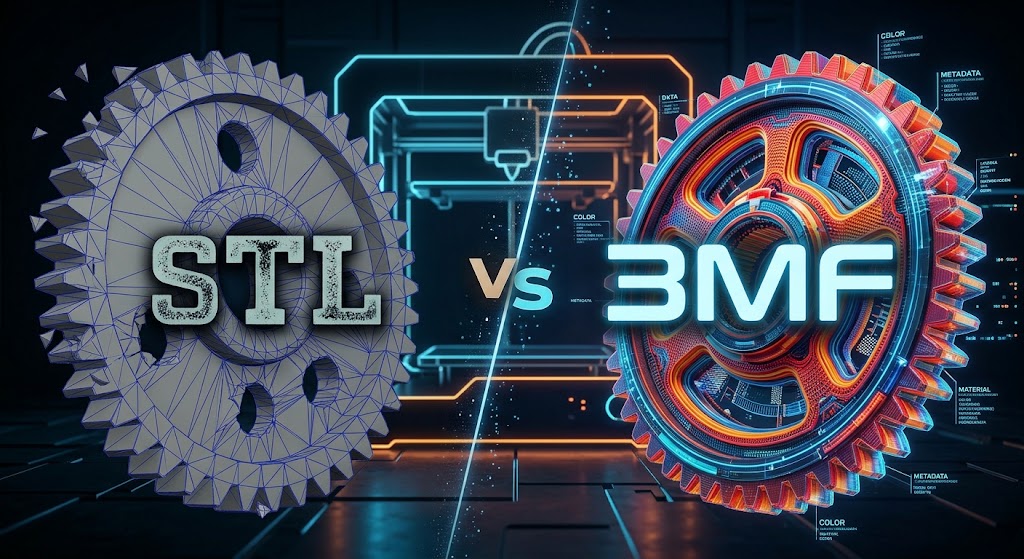
3MF vs STL: Why 3MF Could Replace STL for Modern 3D Printing Workflows
If you have been involved in 3D printing for more than a few days, you know the routine: finish modeling in your CAD software, click export, choose .STL, import the mesh into your slicer, configure your print settings, and hit print.
For nearly four decades, the STL (Stereolithography) file format has served as the universal lingua franca of additive manufacturing. It is simple, ubiquitous, and supported by every 3D modeling tool and slicer on the planet.
Yet, despite its widespread adoption, STL is quietly holding modern 3D printing back.
Enter 3MF (3D Manufacturing Format)—a contemporary, feature-packed file format engineered from the ground up to solve the glaring limitations of decades-old mesh formats. With the rapid rise of multi-color printing, automated cloud slicing, and complex engineering materials, 3MF is not just an alternative; it is quickly becoming the essential standard.
Let’s dive deep into how 3MF and STL compare, why STL is showing its age, and why moving your workflow to 3MF can save you hours of troubleshooting.
What Is an STL File? A Quick History Lesson
The STL format was developed in 1987 by 3D Systems for the very first commercial stereolithography printers. To put that in perspective, STL is older than:
- The World Wide Web (1989)
- JPEG image format (1992)
- PDF documents (1993)
An STL file stores 3D geometry using raw triangulated surface geometry (tessellation). It represents a 3D object as a collection of tiny flat triangles joined at their edges and vertices, along with a normal vector indicating which side faces outward.
The Limitations of STL:
- Zero Unit Awareness: STL files do not store units. If you design in millimeters and open it in a software expecting inches, your model imports 25.4 times too small or too large.
- No Color or Material Data: An STL file contains only raw surface geometry. It cannot tell the slicer which parts are red, black, flexible TPU, or rigid PETG.
- Prone to Geometry Errors: Missing facets, reversed normals, non-manifold edges, and inverted triangles frequently plague STL exports, requiring slicer auto-repair routines.
- Bloated File Sizes: Because curvature is approximated by millions of microscopic flat triangles, high-detail STL files balloon in size without adding true CAD fidelity.
What Is 3MF? The Modern Alternative
In 2015, major industry players—including Microsoft, Autodesk, Stratasys, 3D Systems, HP, Siemens, and UltiMaker—recognized that legacy file formats were throttling innovation in additive manufacturing. Together, they founded the 3MF Consortium to build a modern, open-source file specification tailored specifically for end-to-end 3D design and fabrication.
At its core, a .3mf file is an XML-based, compressed ZIP archive. Inside this single package lives not just the 3D surface geometry, but an entire ecosystem of production data:
- Units and scale definitions (metric or imperial)
- Color, textures, and gradient mappings
- Multi-material and multi-body assembly hierarchies
- Slicer settings, support blockers, infill overrides, and print orientations
- Digital signatures and thumbnail previews
3MF vs. STL: Feature-by-Feature Breakdown
| Feature | STL Format (1987) | 3MF Format (2015+) |
|---|---|---|
| Primary Structure | Uncompressed triangular facets | Compressed XML archive (Zip container) |
| Units & Scaling | None (dimensionless mesh) | Explicitly defined (mm, cm, inches, etc.) |
| File Size | Large for high-resolution curves | Up to 70–90% smaller than comparable STLs |
| Color & Texture | Not supported | Full RGB, textures, and per-vertex color |
| Multi-Material Data | Requires separate split files | Native support for multi-extruder/material setups |
| Print Settings Storage | None | Full slicer profile, supports, and orientation |
| Mesh Integrity | Prone to non-manifold errors | Strictly manifold; self-validating structure |
| Thumbnails | No native support | High-resolution preview image embedded |
Key Advantages: Why 3MF Outperforms STL
1. Native Multi-Color and Multi-Material Intelligence
If you own a modern multi-material printer (such as a Bambu Lab AMS system, Prusa MMU, or dual-extrusion machine), printing with STLs is cumbersome. You typically have to export multiple separate STL files aligned to the same coordinate origin, import them into your slicer as an assembly, and manually assign filaments to each sub-mesh.
A 3MF file bundles multi-body parts, color paint strokes, and material assignments in a single unified container. You open one file, and every filament slot, purge setting, and color transition is preserved exactly as intended.
2. Drastically Smaller File Sizes
Because 3MF uses structured XML compressed inside an archive format, it drastically outperforms raw binary or ASCII STL formats. A detailed mechanical sculpt that generates a 150 MB STL file can frequently be saved as a clean 15 MB to 20 MB 3MF file—without losing geometric fidelity. This makes storing project libraries and transmitting files over the web or cloud slicing platforms much faster.
3. “Project Packaging” Instead of Just Geometry
One of the most transformative aspects of 3MF is its ability to save entire slicer projects.
When you export a 3MF project from slicers like Bambu Studio, OrcaSlicer, or PrusaSlicer, the file saves:
- Model placement and bed orientation
- Custom variable layer heights
- Painted support enforcers and blockers
- Infill patterns, wall counts, and speed overrides
- Filament profiles tuned specifically for that model
When another user opens your 3MF file, they don’t just get raw geometry—they get your tested, calibrated manufacturing process ready to run.
4. Manifold Guarantee and No More “Broken” Meshes
STLs often export with tiny micro-gaps, inverted normals, or self-intersecting boundaries. Slicers are forced to employ heuristic repair tools to guess what is “inside” versus “outside” the model.
The 3MF specification is designed to be inherently watertight. It enforces valid topology rules at the container level, preventing ambiguous geometry errors that lead to failed prints or missing walls.
Why Hasn’t STL Disappeared Completely?
Despite 3MF’s clear technological superiority, STL remains deeply entrenched for a few simple reasons:
- Muscle Memory and Legacy Systems: For over three decades, every 3D printing repository, forum, and service bureau prioritized STL. Many older online quoting engines still expect an
.stlfile. - CAD Export Defaults: Many CAD programs still bury 3MF export under secondary menus or export plugins, while STL sits prominently at the top of the dropdown list.
- Overkill for Simple Mechanical Brackets: For a single-color, structural bracket printed at standard settings on a basic bed-slinger, an STL file still gets the job done without fuss.
How to Switch Your Workflow to 3MF Today
Adopting 3MF doesn’t require buying new hardware or learning complex tools. Most current software ecosystems already support it natively:
- Export from CAD: In Fusion 360, SolidWorks, or Blender, check your export options for 3MF instead of STL. Fusion 360, for example, allows you to save directly as a 3MF file with unit verification intact.
- Save Slicer Work as 3MF: After tuning supports, seam positions, and layer heights in OrcaSlicer, PrusaSlicer, or Bambu Studio, hit “Save Project As…” (
.3mf). Keep this file as your master production record. - Share Complete Setups: When uploading to community repositories like Printables or MakerWorld, provide the pre-oriented, pre-painted 3MF alongside the raw CAD file to save fellow makers dozens of setup minutes.
Final Verdict: Is STL Dead?
STL is not going to vanish overnight, but its status as the default standard for consumer and industrial 3D printing is rapidly eroding. Modern 3D printing is no longer about spitting out monochromatic, low-resolution geometric prototypes; it involves multi-material systems, embedded fasteners, precise engineering fits, and automated cloud workflows.
By bundling geometric precision, complete color information, and ready-to-run print parameters into a single lightweight package, 3MF provides the modern workflow 3D printing has needed for years. If you haven’t made the switch yet, your next project is the perfect time to start.
Frequently Asked Questions (FAQ)
Q1. Can any standard slicer open a 3MF file?
Yes, all major modern slicers—including Cura, PrusaSlicer, Bambu Studio, OrcaSlicer, and Simplify3D—natively open and slice 3MF files.
Q2. Does converting an existing STL into a 3MF make the model higher quality?
No, converting an STL to 3MF simply repackages the existing triangle mesh into a smaller file container; it cannot regenerate curves that were already lost during the original STL export.
Q3. Why do 3MF files open with pre-configured print settings in my slicer?
Because 3MF files can save slicer project metadata, meaning the creator’s infill, support, and speed settings can automatically load alongside the 3D model.
Q4. Can 3MF files store full-color textures for multi-color printing?
Yes, unlike standard STL files, 3MF supports full RGB colors, vertex colors, UV texture maps, and material assignments.
Q5. Are 3MF files safe to open, or can they contain malware?
Since a 3MF file is an XML-based zip container, reputable slicers only parse geometry and configuration data, making them safe when downloaded from trusted sources.
See Also
CAD File Formats at FileFormat.com
Open Source APIs for working with CAD file formats
CAD Automation without AutoCAD: Top Open-Source Frameworks for Developers
File Format Forums – Post your queries in file format forums to get useful information from file format experts and community users
File Format Wiki – Explore file format categories for information about various file formatsss
STEP vs IGES Explained: Comparing Modern and Legacy CAD Exchange Formats