Zuletzt aktualisiert: 30 Jun, 2026
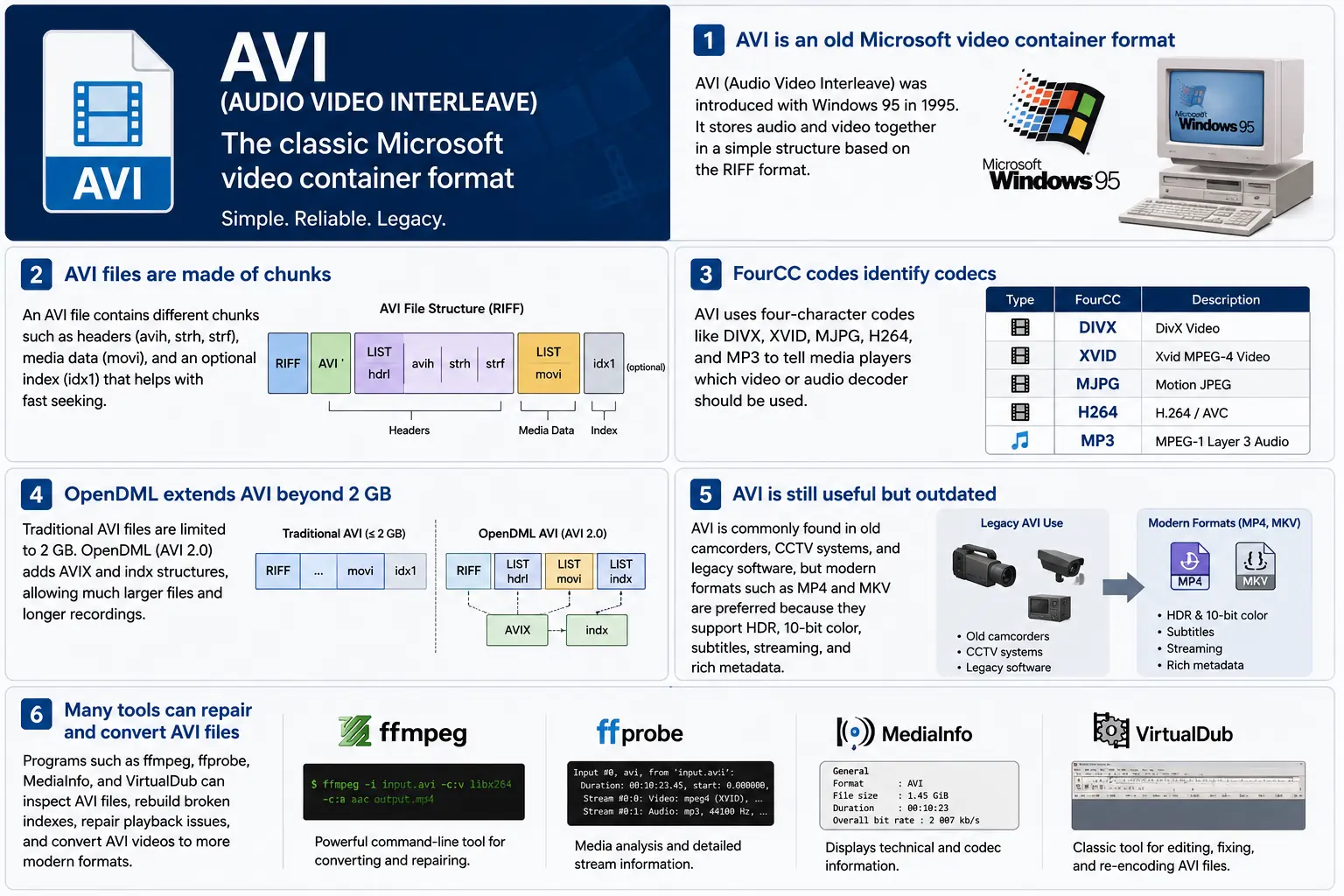
TL;DR – AVI (Audio Video Interleave) ist Microsofts erster „Digitalvideo“-Container, entstanden mit Windows 95. Es ist eine einfache, RIFF‑basierte Datei, die komprimierte Video‑ und Audio‑Chunks interleaved, sodass ein Player sie synchron lesen kann. Das Format wird noch immer von Windows Media Player und vielen Open‑Source‑Tools verstanden, aber es fehlt an modernen Features wie HDR, 10‑Bit‑Farbe und robusten Streaming‑Metadaten. Wenn Sie jemals in altes Filmmaterial eintauchen müssen, verstehen Sie das Chunk‑Layout, die FourCC‑Codes und die OpenDML‑Erweiterungen, die die 2 GB‑Grenze aufheben – das ist das Wesentliche von AVI.
1. Was genau ist eine AVI-Datei?
- Vollständiger Name: Audio Video Interleave
- Erstes Auftreten: Windows 95 (1995) – Microsofts Antwort auf „Digitalvideo“ auf dem Consumer‑PC.
- Spezifikation: Basierend auf dem RIFF (Resource Interchange File Format)-Standard von 1991. RIFF ist ein generischer „Chunk‑basierter“ Container; AVI definiert einfach eine Menge von Chunks, die Audio, Video und Indexdaten enthalten.
- Dateierweiterung / MIME:
.avi–video/x-msvideo. - Hauptziel: Audio- und Videoströme auf der Festplatte eng miteinander verflechten, sodass eine naive Wiedergabeschleife ein Videobild, dann das passende Audiosample lesen kann, ohne teure Sprünge.
- Legacy-Status: Noch abspielbar in Windows Media Player, DirectShow, VLC und unzähligen anderen Playern, aber es ist kein „moderner“ Container. Keine native HDR-, 10‑Bit-, variabel‑Bit‑Rate‑ oder umfangreiche Metadatenunterstützung.
2. Hinter der Box – Wie AVI funktioniert
Das RIFF-Chunk-Skelett
Eine AVI‑Datei ist einfach eine Reihe von Chunks:
RIFF <size> "AVI "          ; file header
  LIST "hdrl"               ; header list
    avih ...                ; main AVI header (global info)
    LIST "strl"             ; stream list (one per stream)
      strh ...              ; stream header (type, codec, timing)
      strf ...              ; stream format (codec‑specific data)
  LIST "movi"               ; interleaved media data
    00dc <size> <video frame>
    01wb <size> <audio block>
    …
  idx1 ...                  ; optional index for fast seeking
- Chunk‑ID (4 Bytes) – z. B.
avih,strh,movi. - Chunk‑Größe (4 Bytes) – Länge der folgenden Daten (ohne die ID‑ und Größenfelder).
- Daten – die eigentliche Nutzlast (Header, Rohbilder usw.).
Da RIFF erweiterbar ist, können Sie neue Chunk‑Typen hinzufügen, ohne ältere Parser zu brechen – ein Design, das AVI über Jahrzehnte hinweg am Leben erhalten hat.
FourCC – Der Codec-Flüsterer
Vier‑Byte‑Codes (FourCC) sind das Bindeglied, das einem Player sagt, welchen Decoder er laden soll. Einige gängige, die Sie in AVI‑Dateien sehen werden:
| FourCC | Codec (ffmpeg) | Typische Verwendung |
|---|---|---|
DIVX | mpeg4 (DivX) | Frühes MPEG‑4 Teil 2 |
XVID | mpeg4 (Xvid) | Open‑Source MPEG‑4 |
MJPG | mjpeg | Motion‑JPEG (digitale Camcorder) |
H264 | h264 | H.264/AVC (selten, aber möglich) |
MP3 | mp3 | MP3-Audiostream |
PCM | pcm_s16le | Unkomprimiertes PCM-Audio |
Der FourCC befindet sich im strh‑Chunk (Codec‑Bezeichner) und manchmal im strf‑Block (Pixel‑Format, Audio‑Sample‑Format).
Zeitmessung & Synchronisation
AVI verwendet ein einfaches Zeitbasis‑System:
- Globaler Header (
avih):dwRate/dwScale→ Bilder pro Sekunde. - Per‑Stream-Header (
strh): sein eigenesdwRate/dwScalefür Audio‑ oder sekundäre Videostreams.
Der Player multipliziert die Bildnummer mit scale/rate, um einen Präsentationszeitstempel (PTS) zu berechnen. Stimmen die Skalen nicht überein, sieht man den klassischen „Audio driftet aus dem Sync“‑Fehler, der alte Werkzeuge plagt.
Der movi‑Chunk – Wo die Medien leben
Alle komprimierten Bilder befinden sich in der movi LIST. Jeder Frame wird von einer Chunk‑ID vorangestellt, die angibt, ob es sich um Video (00dc) oder Audio (01wb) handelt. Die ID codiert zudem die Stream‑Nummer, sodass eine Datei mit zwei Audiospuren 01wb und 02wb enthalten würde.
Da die Daten bereits interleaved sind, kann ein Player einen Videoframe lesen, dann den nächsten Audioblock und sie zusammen präsentieren, ohne weit voraus zu suchen. Dieses deterministische Schreibmuster machte AVI bei frühen Aufzeichnungsgeräten, die latenzarme Festschreibvorgänge benötigten, populär.
Indexierung (idx1) – Vorspulen, Rückspulen
Das optionale idx1‑Chunk ist eine Tabelle von Offsets und Größen für jeden Frame in movi. Ist es vorhanden, erfolgt das Suchen durch einen einfachen Tabelleneintrag. Fehlt es, müssen Player die Datei on‑the‑fly durchsuchen – was bei großen Dateien zu einer merklichen „Buffering“‑Pause führen kann.
OpenDML (AVI 2.0) – Durchbrechen der 2‑GB‑Grenze
Die ursprüngliche RIFF‑Spezifikation begrenzt das Größenfeld eines Chunks auf einen 32‑Bit‑Unsigned‑Integer → 2 GB maximale Dateigröße. OpenDML (manchmal AVI 2.0 genannt) führte ein:
AVIXLISTs – zusätzliche „erweiterte“ RIFF‑Abschnitte, die nach den ersten 2 GB folgen können.indxChunk – ein 64‑Bit‑fähiger Index.- Zusätzliche Header‑Felder für längere Laufzeiten.
Die meisten modernen Werkzeuge (ffmpeg, VLC) wechseln automatisch zu OpenDML, wenn die Ausgabe 2 GB überschreitet, aber viele ältere Player haken immer noch bei AVIX‑Chunks, sodass man gelegentlich Kompatibilitäts‑Tricks sieht, die eine lange Aufnahme in mehrere 2 GB‑AVI‑Dateien aufteilen.
3. Wo lebt AVI im Jahr 2024?
| Trend | Was das für AVI bedeutet |
|---|---|
| Umstieg auf MP4/MKV/ProRes | Neue Produktionen bevorzugen Container, die nativ HDR, 10‑Bit, VBR und umfangreiche Metadaten unterstützen. AVI wird für neue Inhalte selten gewählt. |
| Legacy-Hardware | Alte CCTV‑Kameras, Camcorder aus den frühen 2000er‑Jahren und einige Spiel‑Engines geben immer noch AVI aus. Sie müssen diese Dateien weiterhin in einen modernen Workflow einbinden. |
| Open‑Source-Unterstützung | ffmpeg, libav, VLC, HandBrake und GStreamer halten AVI‑Parser am Leben, aber sie rekodieren häufig zu MP4/MKV für die Verteilung. |
| OpenDML-Wiederaufleben | 4K‑Überwachungsaufnahmen, die tagelang laufen, überschreiten schnell 2 GB. OpenDML (AVIX) ist nach wie vor die bevorzugte Lösung, obwohl viele Werkzeuge damit Probleme haben. |
| Sicherheits‑härtung | Historische AVI‑Parser akzeptierten fehlerhafte Chunk‑Größen, was zu CVEs führte (z. B. CVE‑2020‑13144). Windows bevorzugt jetzt Media Foundation, das viele alte Eigenheiten ablehnt und Entwickler zu sichereren Pipelines drängt. |
| Container‑agnostische Pipelines | Moderne Medien‑Frameworks behandeln AVI einfach als ein weiteres Quell‑Element. Sobald die Daten in Roh‑Puffer demuxed wurden, wird der Container für die nachgelagerte Verarbeitung irrelevant. |
Kurz gesagt, AVI ist lebendig aber alternd – es überlebt dort, wo alte Hardware oder einfacher interleaver Speicher erforderlich ist, aber es ist keine Erstwahl für neue Projekte.
4. Praxis: Arbeiten mit AVI heute
A. Blick auf einen Minimalen Header (hex)
52 49 46 46  00 00 00 00  41 56 49 20   ; "RIFF" + size + "AVI "
4C 49 53 54  20 00 00 00  68 64 72 6C   ; LIST "hdrl"
...
Der RIFF‑Magic‑Wert (52 49 46 46) teilt jedem Parser mit, „dies ist eine RIFF‑Datei“. Die nächsten vier Bytes geben die gesamte Dateigröße (minus 8) an. Der "AVI "‑Bezeichner verankert die Datei in der AVI‑Familie.
B. Konvertierung moderner MP4 → Legacy-AVI
ffmpeg -i input.mp4 \
       -c:v mpeg4 -q

```bash
ffmpeg -i input.mp4 \ -c:v mpeg4 -qscale:v 5 \   # MPEG‑4 Part 2 (DivX/Xvid kompatibel) -c:a mp3 -b:a 192k \      # MP3‑Audio (die meisten AVI‑Player verstehen das) -f avi output.avi
The command above forces MPEG‑4 Part 2 video (the codec most legacy AVI players recognize) and MP3 audio, then writes an AVI container. If you need OpenDML support for files larger than 2 GB, add the -movflags +faststart‑style flag that tells FFmpeg to use the extended AVIX chunks:
ffmpeg -i input.mp4 \ -c:v mpeg4 -qscale:v 5 \ -c:a mp3 -b:a 192k \ -f avi -flags +global_header -movflags +faststart output.avi
Tip: Some older Windows Media Player versions still choke on the
AVIXextension. If you must stay under 2 GB, split the source into multiple AVIs using the-segment_timeand-f segmentmuxer.
5. Common Pitfalls & How to Fix Them
| Symptom | Likely Cause | Fix |
|---|---|---|
| Audio drifts out of sync after a few minutes | Mismatched dwRate/dwScale between avih and strh (or a VBR audio stream) | Re‑encode audio to a constant‑bitrate format (e.g., MP3 128 kbps) or use -vsync 2 in FFmpeg to force frame‑accurate timestamps. |
| “Cannot play this video” on Windows Media Player | Missing or corrupt idx1 index, or OpenDML (AVIX) chunks not recognized | Run ffmpeg -i broken.avi -c copy -map 0 -f avi repaired.avi to rebuild the index; or use aviindex (part of mplayer) to generate a fresh idx1. |
| File size capped at 2 GB despite long footage | Encoder used classic AVI (no OpenDML) | Add -use\_open\_dml 1 (FFmpeg) or -format avi2 (VirtualDub) to enable OpenDML extensions. |
| Green or corrupted frames | Incompatible FourCC (e.g., H.264 in an AVI without proper headers) | Stick to codecs known to work in AVI (mpeg4, msmpeg4v2, MJPG, XVID). If you must store H.264, use the h264 FourCC and ensure the strf chunk contains the SPS/PPS extradata. |
| Playback stalls on network streams | AVI’s lack of robust streaming metadata (no moov atom) | Wrap the AVI in a streaming protocol (e.g., RTSP) that handles byte‑range requests, or convert to MP4/MKV for smoother streaming. |
6. Debugging Tools You Should Keep Handy
| Tool | Platform | What It Does |
|---|---|---|
| ffprobe / ffmpeg | Cross‑platform | Dumps every chunk, FourCC, timestamps, and can rebuild indexes (-c copy). |
| MediaInfo | Windows/macOS/Linux | Human‑readable summary of streams, codecs, and container flags. |
| VirtualDub | Windows | Classic AVI editor; can rebuild headers, add OpenDML, and preview frame‑by‑frame. |
| GSpot (legacy) | Windows | Identifies obscure FourCCs and suggests appropriate codecs. |
| aviindex (part of MPlayer) | Linux/macOS | Generates a fresh idx1 chunk for broken files. |
| Hex editors (HxD, Bless) | Any | Directly inspect RIFF headers when you suspect malformed chunk sizes. |
A typical workflow when an AVI refuses to play:
- Inspect with
ffprobe -show_format -show_streams file.avi. - Check the index:
ffmpeg -i file.avi -c copy -f avi -y temp.avi(FFmpeg will rebuild it automatically). - Validate FourCCs:
mediainfo file.avi. If you see an unknown codec, consider re‑encoding that stream. - Repair with VirtualDub → “File → Re‑open as AVI (OpenDML)”. Save a fresh copy.
7. When (and When Not) to Use AVI
Good Use‑Cases
| Scenario | Why AVI Works |
|---|---|
| Legacy camcorder ingest | The device outputs native AVI; transcoding adds unnecessary quality loss. |
| Simple interleaved capture | Low‑latency write to disk without needing complex container features. |
| Compatibility with old Windows‑only software | Some industrial automation tools only understand AVI. |
| Archiving raw, uncompressed video | AVI can hold PCM audio and uncompressed RGB24 video without extra overhead. |
Bad Use‑Cases
| Scenario | Why AVI Fails |
|---|---|
| HDR or 10‑bit color | No standard way to store those pixel formats; you’d need a custom FourCC that most players ignore. |
| Variable‑bit‑rate streaming | Lack of a proper moov‑like atom makes adaptive bitrate impossible. |
| Rich metadata (chapters, subtitles, tags) | AVI’s chunk model doesn’t define standard containers for subtitles or extensive tags. |
| Cross‑platform mobile distribution | Modern mobile players expect MP4/MKV; AVI may not be hardware‑accelerated. |
If you’re starting a new project, treat AVI as a fallback for legacy pipelines, not a primary delivery format.
8. Future Outlook – Will AVI Ever Make a Comeback?
The short answer: unlikely. The industry has coalesced around ISO‑BMFF‑based containers (MP4, MOV, HEVC‑MP4, etc.) because they support:
- Extensible metadata (ISO‑UserData, UUID boxes).
- Fragmented streaming (moof/mdat) for adaptive bitrate.
- Native HDR/10‑bit/12‑bit video definitions.
AVI’s design, while elegant for its time, is fundamentally limited by its 32‑bit size fields and its reliance on external FourCC‑driven codecs. Even though OpenDML extended the size limit, it never gained widespread adoption beyond niche surveillance and archival tools.
That said, software preservation will keep AVI parsers alive for decades. Projects like FFmpeg, GStreamer, and VLC will continue to support the format, ensuring that the massive archive of 1990s‑2000s footage remains accessible. In a world where “digital archaeology” is becoming a real discipline, knowing how to read and repair AVI files is still a valuable skill.
9. Quick Reference Cheat‑Sheet
| Item | Command / Setting | Explanation |
|---|---|---|
| Create classic AVI | ffmpeg -i src -c:v mpeg4 -qscale:v 5 -c:a mp3 -b:a 192k -f avi out.avi | Simple, widely compatible. |
| Enable OpenDML | ffmpeg -i src -c:v mpeg4 -qscale:v 5 -c:a mp3 -b:a 192k -f avi -use_open_dml 1 out.avi | Allows >2 GB files. |
| Re‑index broken AVI | ffmpeg -i broken.avi -c copy -f avi repaired.avi | Rewrites idx1. |
| Split >2 GB into chunks | ffmpeg -i long.avi -c copy -map 0 -segment_time 1800 -f segment part_%03d.avi | 30‑minute segments stay under the limit. |
| Inspect header | ffprobe -show_format -show_streams file.avi | Dumps all RIFF chunks and stream info. |
| Add a subtitle track (non‑standard) | ffmpeg -i video.avi -i subs.srt -c copy -metadata:s:s:0 language=eng out.avi | Works only with players that read the txt stream; not universally supported. |
Keep this table bookmarked; it covers 80 % of everyday AVI tasks.
10. Best Practices for Archiving AVI Files
Even though AVI is a legacy container, many institutions still have petabytes of it sitting on tape or in cold‑storage. Treating those assets with a disciplined workflow will save you headaches down the line.
| Practice | Why It Matters | How to Implement |
|---|---|---|
| Validate on ingest | Corrupt headers or missing indexes can go unnoticed until playback. | Run ffprobe -v error -show_format -show_streams file.avi immediately after copying. Log any non‑zero exit codes. |
| Generate a checksum | Guarantees bit‑exact preservation across media migrations. | Use SHA‑256 (sha256sum file.avi > file.avi.sha256). Store the checksum alongside the file in your catalog. |
| Create a modern proxy | Most downstream workflows (editing, streaming) expect MP4/MKV. | Encode a low‑bitrate MP4 proxy (ffmpeg -i file.avi -c:v libx264 -crf 23 -c:a aac -b:a 128k proxy.mp4). Keep the proxy in the same directory with a clear naming convention (*_proxy.mp4). |
| Document FourCCs and codec versions | Some FourCCs map to multiple codec implementations (e.g., DIVX could be DivX 5, 6, or 7). | Extract the codec private data (ffprobe -show_private_data) and store it in a side‑car JSON file (file.avi.codec.json). |
| Migrate to OpenDML for large files | Files >2 GB will become unreadable on older players. | When transcoding, always pass -use_open_dml 1. If you’re only copying, use aviindex to rebuild an OpenDML‑compatible index. |
| Store metadata in a side‑car | AVI has no standard for extensive tags (e.g., creator, location). | Use XMP side‑car files (file.avi.xmp) or embed a small INFO LIST chunk manually if you need minimal in‑container metadata. |
| Regularly test playback | Bit‑rot can affect codecs as well as containers. | Schedule a quarterly job that runs a headless player (e.g., ffplay -autoexit -frames 10 file.avi) and reports any failures. |
By applying these steps at the moment of acquisition, you avoid costly “repair‑the‑archive” projects later.
11. Frequently Asked Questions (FAQ)
Q1: Can I store H.265/HEVC video inside an AVI file?
Short answer: Technically yes, if you supply the correct FourCC (HEVC or HVC1) and include the SPS/PPS NAL units in the strf chunk. In practice, very few players support it, and many will treat the stream as unknown. For reliable playback, stick to MPEG‑4 Part 2 or Motion‑JPEG.
Q2: Why does Windows Media Player sometimes show a black screen but still plays audio?
Explanation: The player has successfully opened the audio stream but failed to locate a usable video decoder for the FourCC. This can happen when the FourCC is custom or when the required codec isn’t installed. Installing a codec pack (e.g., K-Lite) or re‑encoding the video to a known FourCC resolves the issue.
Q3: Is there any way to embed subtitles directly into an AVI file?
Answer: AVI does not define a standard subtitle stream. Some tools cheat by adding a “txt” stream (FourCC txt ) that contains plain‑text subtitles, but only a handful of players (e.g., VirtualDub with a plugin) will render them. The recommended approach is to keep subtitles in a separate .srt or .ass file, or to re‑mux into a container that officially supports subtitles (MP4, MKV).
Q4: My video shows a “frame rate mismatch” warning in MediaInfo. What should I do?
Solution: Verify that the dwRate/dwScale values in both the global avih and per‑stream strh headers are consistent. If they differ, re‑mux with FFmpeg using -video_track_timescale to force a uniform time base:
ffmpeg -i broken.avi -c copy -video_track_timescale 1000 fixed.avi
Q5: Does AVI support multiple audio languages?
Yes, but with caveats. You can add several audio streams, each with its own strh/strf pair and a distinct stream number (01wb, 02wb, …). However, there is no standardized way to label the language; you must rely on external metadata (e.g., an accompanying .xml file) or embed a custom INFO chunk.
Q6: How can I extract raw frames from an AVI without re‑encoding?
Command:
ffmpeg -i source.avi -c:v copy -f image2 frame_%05d.bmp
Replace bmp with png or tiff if you prefer lossless image formats. The -c:v copy flag tells FFmpeg to dump the compressed frames as‑is; if the codec is MJPEG, the output will already be JPEG images.
Q7: Are there any security concerns when opening AVI files from untrusted sources?
Yes. Malformed chunk sizes can trigger buffer overflows in legacy parsers (e.g., older DirectShow filters). Always open unknown AVIs in a sandboxed environment or use a modern library like FFmpeg that performs strict bounds checking. Updating Windows Media Foundation and disabling legacy DirectShow filters further mitigates risk.
12. TL;DR Zusammenfassung (für Ungeduldige)
- AVI = RIFF‑based, interleaved container introduced with Windows 95.
- FourCC tells the player which codec to use; common ones are
DIVX,XVID,MJPG,H264,MP3. - Timing is driven by
dwRate/dwScalein the global and stream headers. moviholds the actual media;idx1(optional) speeds up seeking.- OpenDML (
AVIX) lifts the 2 GB limit but isn’t universally supported. - Use cases today: legacy camcorder ingest, simple interleaved capture, archival of raw PCM video.
- Avoid for new projects: no HDR, 10‑bit, VBR, subtitles, or rich metadata.
- Toolbox:
ffprobe,ffmpeg, MediaInfo, VirtualDub, aviindex, hex editors. - Best practice: validate, checksum, generate modern proxies, and migrate large files to OpenDML.
13. Abschließende Gedanken
AVI’s simplicity is both its strength and its Achilles’ heel. It gave early PC users a straightforward way to store synchronized audio‑video pairs, and that design philosophy—interleaved chunks, a clear header layout, and extensible FourCC identifiers—still influences modern containers. While the industry has moved on to more feature‑rich formats, the sheer volume of legacy footage means AVI will remain a “must‑know” for anyone working in video preservation, forensic analysis, or any field that must bridge the past with today’s workflows.
If you ever find yourself staring at a dusty .avi on a hard drive from the late‑90s, you now have the conceptual map, the command‑line recipes, and the troubleshooting checklist to bring that footage back to life—whether you choose to keep it in its original container or transcode it into a modern, HDR‑ready format.
Happy demuxing!