Last Updated: 24 July, 2026
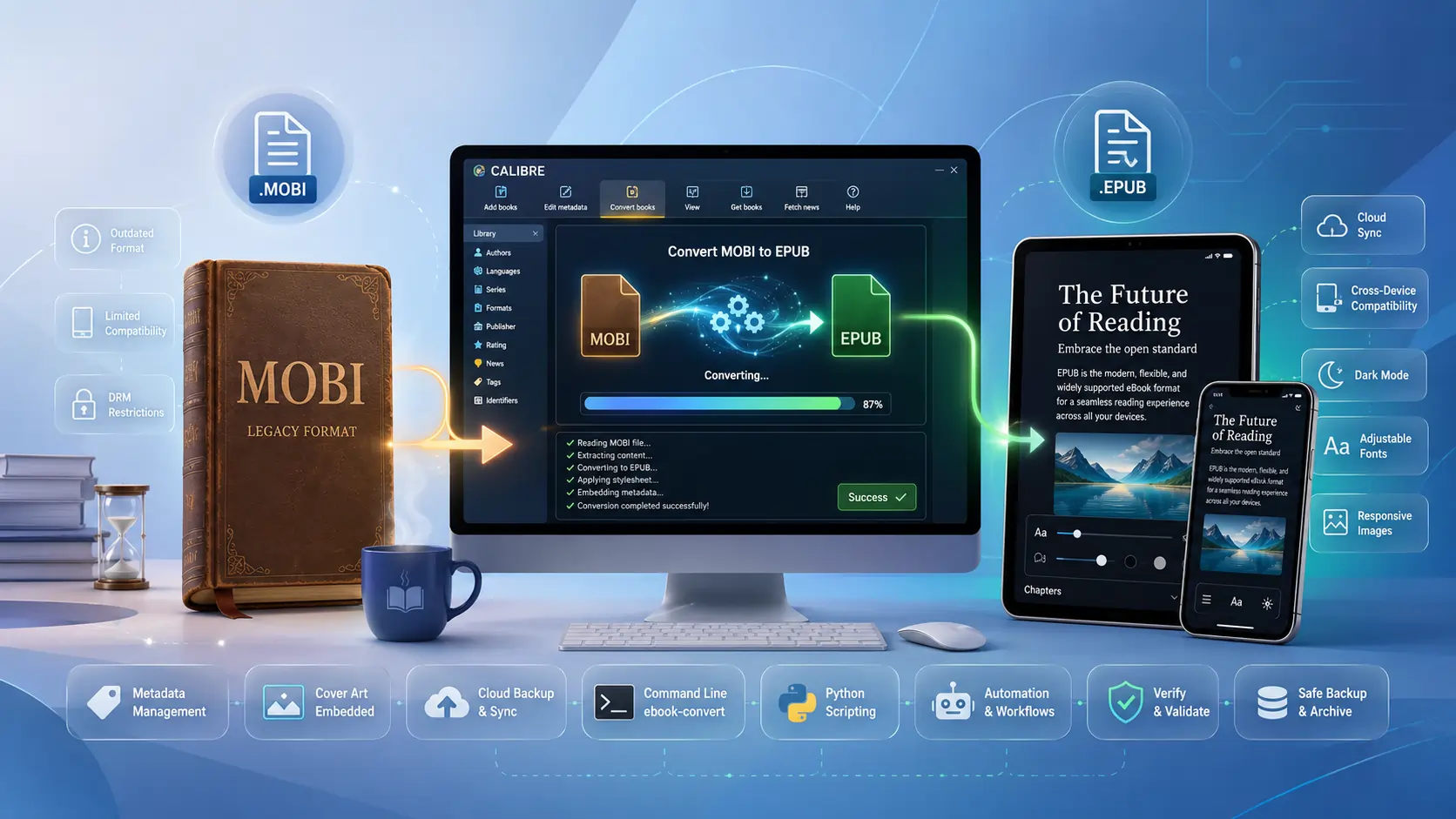
TL;DR – If you’ve got a stash of old .mobi books and want to read them on anything that isn’t a Kindle, Calibre (free, open‑source, and surprisingly powerful) can turn them into clean .epub files in a few clicks or a one‑liner in the terminal. The conversion is loss‑less for plain text, preserves most metadata, and works in bulk. Just remember: Calibre does not strip DRM – you must handle that legally on your own.
Why Bother Converting MOBI → EPUB?
- MOBI is on its way out. Amazon introduced MOBI back in the early 2000s and kept it alive for legacy Kindles, but newer Kindle books are now delivered as AZW3/KFX.
- EPUB is the universal lingua‑franca. Almost every non‑Amazon reader (iPad, Kobo, Nook, Apple Books, Android e‑readers, even web‑based readers) expects EPUB. Converting future‑proofs your library.
- Calibre’s conversion engine is battle‑tested. Under the hood it runs
ebook-convert, which rewrites the MOBI’s internal HTML/CSS into a tidy, standards‑compliant EPUB 2 or 3 package. - Metadata travels with the book. Title, author, series info, tags, and cover art are automatically copied into the EPUB’s OPF file, so you won’t lose your organization.
Legal note: Calibre will not remove DRM. If your MOBI files are DRM‑protected, you must first strip the DRM with a separate plugin (e.g., DeDRM) and you should only do this for books you’ve legally purchased and own.
Getting Calibre Up and Running
- Download & install – Grab the latest version (v6.0+ at the time of writing) from https://calibre‑ebook.com/download. It works on Windows, macOS, and Linux.
- Launch the app – The UI now sports a dark mode, a streamlined toolbar, and a “Conversion queue” that makes bulk jobs painless.
- Optional plugins –
- DeDRM (if you need to handle DRM legally).
- KoboTouchExtended (adds Kobo‑specific metadata).
- EpubMerge (combine several MOBI files into one EPUB).
Install plugins via Preferences → Plugins → Load plugin from file.
GUI Workflow – One‑Click Conversion (Windows/macOS/Linux)
| Step | What to Do | Why It Matters |
|---|---|---|
| 1. Add your MOBI | Drag‑and‑drop the file(s) into Calibre’s library or click “Add books”. | Calibre reads the MOBI’s internal metadata and creates a library entry. |
| 2. Select → Convert books | Right‑click the entry (or use the top‑right Convert books button). | Opens the conversion dialog where you pick the output format. |
| 3. Choose EPUB | In the top‑right dropdown, select EPUB. | Tells Calibre which container to generate. |
| 4. Tweak optional settings (recommended) | • Structure detection – enable “Force use of first image as cover” if the cover is missing.• Page setup – set a reasonable Maximum page size (e.g., 1200 × 1600) to keep images from ballooning.• EPUB output – pick EPUB 2 for maximum compatibility or EPUB 3 for richer features. | These knobs help preserve chapter breaks, keep file size sane, and ensure the EPUB works on your target device. |
| 5. Hit OK | The conversion queue appears; Calibre processes the file(s). | You can watch progress, pause, or cancel. |
| 6. Export | Right‑click the new EPUB → “Save to disk” → choose a folder. | The EPUB is now ready to be copied to any reader or cloud service. |
Bulk Convert an Entire Folder
- Click the “Bulk convert” button (looks like two arrows).
- In the dialog, set “Input format” to MOBI and “Output format” to EPUB.
- Add the folder (or select multiple books) and click “OK”. Calibre will queue every file and spit out a matching EPUB for each.
Command‑Line Power – Fast, Scriptable Conversions
If you prefer the terminal (or need to automate a nightly job), Calibre ships with ebook-convert. Here are a few practical snippets.
Single‑File Conversion
ebook-convert "MyOldBook.mobi" "MyOldBook.epub" \
    --epub-version=3 \
    --output-profile=generic_eink \
    --max-toc-links=500 \
    --remove-first-image
--epub-version– Choose 2 or 3.--output-profile– Optimizes image size for the target device (e.g.,kindle,generic_eink).--remove-first-image– Prevents the cover image from appearing twice in the body.
Batch Conversion (Bash Loop)
for f in *.mobi; do
    ebook-convert "$f" "${f%.mobi}.epub" \
        --epub-version=2 \
        --cover="${f%.mobi}_cover.jpg" \
        --max-size=1200x1600
done
Python Automation (Calibre’s API)
from calibre.ebooks.conversion.cli import main as calibre_convert

def mobi_to_epub(in_path, out_path, epub_version=3):
    args = [
        in_path,
        out_path,
        '--epub-version', str(epub_version),
        '--output-profile', 'generic_eink',
        '--max-toc-links', '1000'
    ]
    calibre_convert(args)

# Example
mobi_to_epub('old_collection/1984.mobi', 'new_epub/1984.epub')
Run the script with Calibre’s interpreter:
calibre-debug -c "convert_script.py"
These approaches let you drop a folder of MOBI files into a cron job, a CI pipeline, or a simple batch file and walk away with a tidy EPUB library.
Tips, Tricks, and Common Pitfalls
| Issue | Fix / Best Practice |
|---|---|
| Missing or duplicated cover | In the GUI, enable “Force use of first image as cover” and also tick “Remove first image from body”. In CLI, use --remove-first-image. |
| Huge file size after conversion | Turn on “Compress images” (GUI) or add --max-size=1200x1600 and --no-inline-toc in CLI. |
| Chapter breaks disappear | Enable “Detect page breaks” under Page break detection; Calibre will insert <hr> tags that become TOC entries. |
| EPUB won’t open on older readers | Force EPUB 2 output (--epub-version=2) and avoid advanced CSS features. |
| Metadata gets lost | Verify that the MOBI actually contains the metadata (use “Edit metadata” before conversion). Calibre copies what it can; if the source is missing something, you’ll need to add it manually. |
| You have a mixed‑format library | Use Calibre’s “Auto‑convert” rule (Preferences → Adding books → “Auto‑convert added books”) to automatically turn any new MOBI into EPUB as it’s imported. |
Future‑Proofing
- AI‑enhanced plugins are emerging (e.g., OpenAI‑Summarizer) that can auto‑generate missing chapter titles or improve OCR‑generated MOBI files before conversion. Keep an eye on Calibre’s plugin repository.
- Read‑anywhere ecosystems (Apple Books, Google Play Books, Kobo) all require EPUB. Converting now means you can sync your library to cloud services like Nextcloud and read on any device without being locked into Amazon’s ecosystem.
Wrap‑Up
Converting your legacy MOBI collection to EPUB with Calibre is straightforward, whether you prefer a point‑and‑click UI or a slick command‑line script. The process preserves text, images, and metadata, giving you a portable, open‑format library ready for today’s “read‑anywhere” world. Just stay
Just stay mindful of DRM, keep backups of both the original MOBI files and the newly minted EPUBs, and double‑check that the conversion didn’t introduce any stray formatting glitches before you delete the source files. A quick glance at the first few chapters on your target device will usually reveal any lingering issues.
Back‑up Strategies – Keep Your Library Safe
Mirror your Calibre library folder
Calibre stores each book in a sub‑folder under the main library directory (~/Calibre Library/on macOS/Linux,C:\Users\<Name>\Calibre Library\on Windows). Use a cloud‑sync service (OneDrive, Dropbox, Google Drive, or a self‑hosted Nextcloud) to mirror this folder in real time.- Pros: Instant versioning, easy restoration if a conversion goes wrong.
- Cons: Some services have file‑size limits; large image‑heavy EPUBs may need selective syncing.
Export a catalog
From the Calibre UI, choose “Library → Export/Import → Export all calibre data”. This creates a JSON/CSV dump of your metadata, which can be re‑imported if you ever need to rebuild the library from scratch.Checksum verification
After a bulk conversion, run a simple checksum comparison to ensure every MOBI has a corresponding EPUB:find . -name "*.mobi" -exec md5sum {} \; > mobi_md5.txt find . -name "*.epub" -exec md5sum {} \; > epub_md5.txt diff mobi_md5.txt epub_md5.txt # should show only filename differences, not mismatched hashesIf a file fails the checksum test, re‑run the conversion for that specific title.
Syncing EPUBs to Your Devices
| Device | Recommended Method | Steps |
|---|---|---|
| Kobo | Calibre’s built‑in “Send to device” | Connect via USB, click the device icon, then “Send to device → Send specific format → EPUB”. |
| Apple Books (iOS/macOS) | AirDrop or iCloud Drive | Drag the EPUB onto the Books app on macOS, or AirDrop from Mac/PC to iPhone/iPad. |
| Android (Moon+ Reader, Aldiko, etc.) | Direct file copy or cloud sync | Copy the EPUB folder to Books/ on the device, or use a synced folder like Google Drive and open from within the reader app. |
| Web‑based readers (Readium, BookFusion) | Upload via web UI | Log in to the service, click Upload, select your EPUBs, and they’ll appear in the cloud library. |
Most modern readers will automatically generate a table of contents from the EPUB’s internal navigation file (toc.ncx or nav.xhtml). If you notice missing chapters, revisit the “Structure detection” settings in Calibre and experiment with the “Force detection of chapters” option.
Advanced Customizations – When the Default Isn’t Enough
1. Custom CSS Injection
If you want a consistent look across all converted books (e.g., a specific font family or line‑height), create a CSS file (my_style.css) and point Calibre to it:
ebook-convert input.mobi output.epub \
    --extra-css="my_style.css" \
    --embed-all-fonts
The --embed-all-fonts flag bundles the font files inside the EPUB, guaranteeing the same typography on any device.
2. Removing Advertisements or Boilerplate
Some MOBI files (especially those sourced from free‑distribution sites) contain promotional pages at the start or end. Use Calibre’s “Page setup → Remove first/last N pages” or the CLI flag:
ebook-convert input.mobi output.epub \
    --remove-first-paragraphs=2 \
    --remove-last-paragraphs=3
3. Converting to EPUB 3 with Fixed‑Layout Support
For graphic‑heavy books (comics, textbooks, children’s picture books) you may need a fixed‑layout EPUB. Enable it in the GUI under EPUB output → “Create a fixed‑layout EPUB” or via CLI:
ebook-convert input.mobi output.epub \
    --epub-version=3 \
    --fixed-layout=1 \
    --page-breaks-before="img"
4. Batch Renaming Files Based on Metadata
After conversion, you might want clean filenames like Author - Series #01 - Title.epub. Calibre can do this automatically:
calibre-debug -c "from calibre.ebooks.metadata import check_isbn; \
import os; \
for book in os.listdir('epub_folder'): \
    if book.lower().endswith('.epub'): \
        path = os.path.join('epub_folder', book); \
        mi = check_isbn(path); \
        new_name = f\"{mi.authors[0]} - {mi.title}.epub\"; \
        os.rename(path, os.path.join('epub_folder', new_name))"
(Replace the snippet with a proper metadata extraction routine for your needs.)
Frequently Asked Questions (FAQ)
Q: Will images be downscaled automatically?
A: Yes, if you enable the “Compress images” option or set --max-size. Calibre respects the target device profile, so a Kindle Paperwhite will get smaller images than a tablet.
Q: My EPUB won’t open on a Kobo – it says “Invalid EPUB”.
A: Kobo devices are picky about the EPUB version and the presence of a toc.ncx. Re‑convert with --epub-version=2 and ensure “Create a Table of Contents” is checked.
Q: How do I keep series information intact?
A: Calibre reads the series tag from the MOBI’s internal metadata. If it’s missing, add it manually in the Edit metadata window before conversion. The series name and index will be written to the EPUB’s OPF file.
Q: Can I convert MOBI to other formats (PDF, AZW3) in the same batch?
A: Absolutely. The ebook-convert command accepts any supported output format. For example, to produce both EPUB and PDF in one pass, run two separate commands or use a small shell loop that iterates over the desired extensions.
Q: Is there a way to convert directly from a cloud storage service (e.g., Google Drive) without downloading locally?
A: Calibre’s “Add books” dialog can accept a URL. Provide the direct download link to the MOBI file, and Calibre will fetch it, convert, and store the result in your library. For bulk operations, mount the cloud drive locally (via rclone, Google Drive File Stream, etc.) and point Calibre at the mounted folder.
Final Thoughts
Migrating from a proprietary, Amazon‑centric format to the open, future‑proof EPUB ecosystem is a one‑time investment that pays dividends every time you pick up a new e‑reader or switch platforms. Calibre’s blend of a polished graphical interface and a powerful command‑line engine means you can start with a single drag‑and‑drop and later scale up to fully automated nightly jobs that keep your library pristine.
Remember:
- Check DRM first – Calibre won’t help you there.
- Test a handful of books before launching a massive batch conversion.
- Back up both source and output files.
- Tweak settings (cover handling, image compression, EPUB version) to match the quirks of your target device.
Once you’ve got a clean EPUB collection, you’ll enjoy the freedom to read anywhere, share with friends (within the bounds of copyright law), and even repurpose the content for personal projects like note‑taking or text‑to‑speech pipelines.
Happy converting, and may your e‑reading experience be ever‑lasting and DRM‑free!