Last Updated: 24 July, 2026
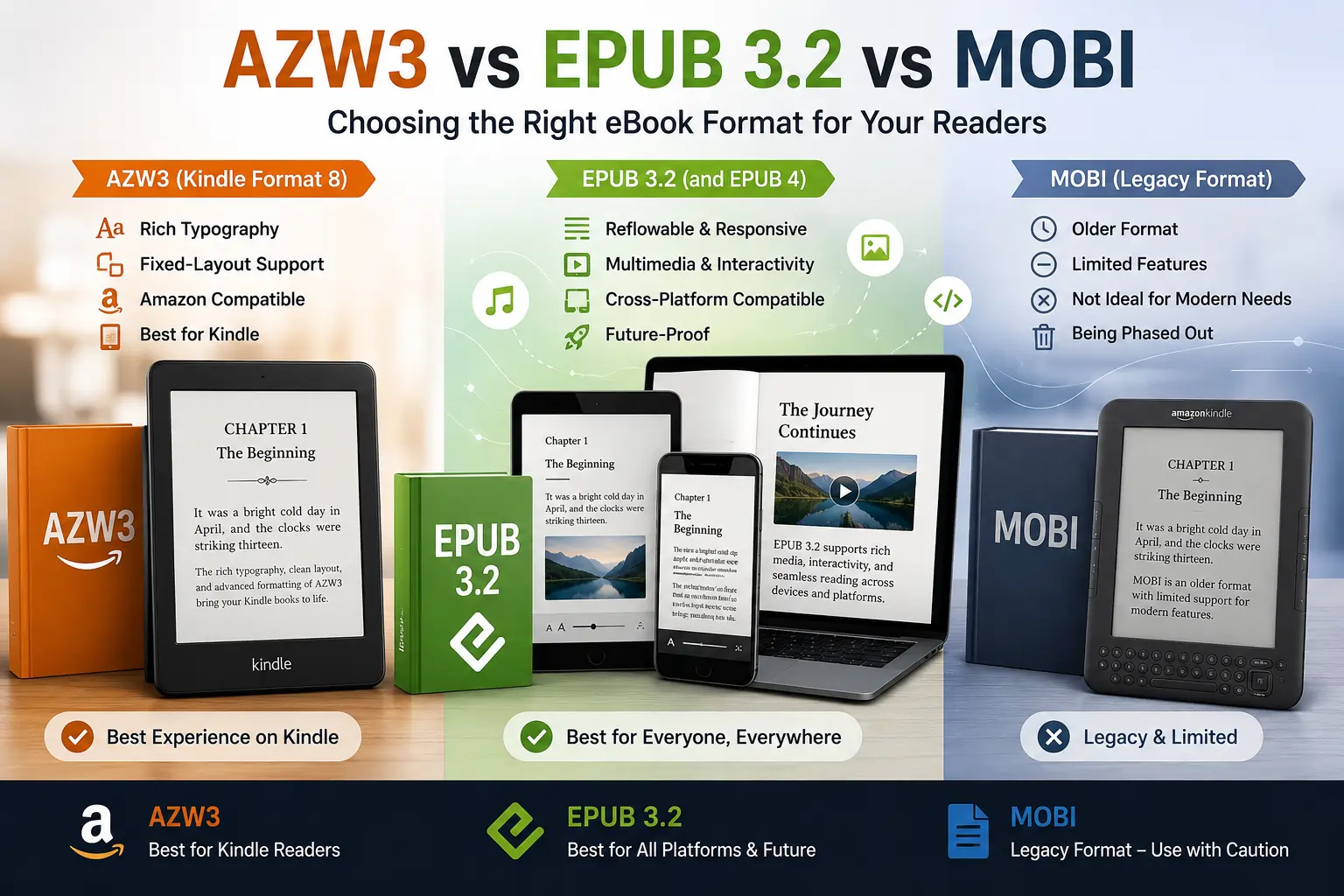
TL;DR – If you’re publishing only for Kindle, AZW3 (Kindle Format 8) gives you the richest typography and fixed‑layout support while still being Amazon‑compatible. For anything beyond Kindle—especially if you need multimedia, interactivity, or cross‑platform reach—EPUB 3.2 (or the upcoming EPUB 4 draft) is the clear winner. MOBI is basically legacy baggage: it works on older Kindles but lacks modern features and is being phased out in favor of direct EPUB uploads.
Quick‑Reference Fact Table (mid‑2026)
| Feature | MOBI (incl. KF8/“AZW”) | EPUB 3.2 (and EPUB 4 draft) | AZW3 (KF8/Kindle Format 8) |
|---|---|---|---|
| Origin | Amazon (Mobipocket, 2005) | IDPF → W3C (1999‑2023) | Amazon (KF8 evolution, 2015) |
| Extension | .mobi, .azw, .azw1 | .epub | .azw3, .kf8 |
| Open vs. closed | Closed (Amazon‑controlled) | Fully open, royalty‑free | Closed (Amazon‑only) |
| Device support | Kindle (legacy), some third‑party apps | Almost every non‑Kindle device (iOS Books, Google Play Books, Kobo, Nook, desktop) | All Kindle devices & apps |
| Rendering engine | Kindle Rendering Engine (KRE) | Readium, iBooks, Kobo engine – HTML5/CSS3 | KRE (same as Kindle) |
| DRM | Amazon DRM (AES‑128) – optional | No built‑in DRM; can use Adobe DRM or LCP | Amazon DRM (AES‑128) – optional |
| Multimedia | Limited (audio/video only in KF8/AZW3) | Full HTML5, CSS3, JS, MathML, SVG, audio/video | Full KF8 multimedia (audio/video, fixed‑layout) |
| Fixed‑layout / comics | Only in KF8/AZW3 (not classic .mobi) | Native Fixed‑Layout (EPUB‑FL) – widely used | Supported (KF8) |
| Font embedding | Yes (KF8/AZW3) | Yes (OpenType, WOFF2) | Yes |
| Annotations & sync | Cloud‑sync via Amazon account | Device‑specific; optional third‑party services | Cloud‑sync via Amazon account |
| Conversion tools | Calibre, KindleGen (deprecated), Kindle Previewer, Kindle Create | Calibre, Sigil, Pandoc, Adobe InDesign, Vellum | Calibre, Kindle Previewer, Kindle Create |
| Typical use‑case today | Self‑published authors targeting Kindle only | Publishers aiming for platform‑agnostic distribution | Authors/publishers who need Kindle‑only features (advanced typography, fixed‑layout) |
1. Open vs. Proprietary Standards – Why It Matters
- EPUB is the industry’s open standard (ISO/IEC 26300) and now lives under the W3C umbrella. That means anyone can read, edit, or republish an EPUB without paying royalties, and the spec evolves transparently.
- MOBI and AZW3 are Amazon‑controlled. They guarantee that a file will work on every Kindle, but they also lock you into Amazon’s DRM and ecosystem. If you ever want to sell on Kobo, Apple Books, or Google Play, you’ll need a conversion step.
Bottom line: Choose EPUB when you care about portability, future‑proofing, or selling on multiple storefronts. Stick with AZW3 (or the older MOBI) only when Kindle‑only distribution is a hard requirement.
2. Rendering Engines & Layout Fidelity
| Engine | What it is | Strengths | Weaknesses |
|---|---|---|---|
| Kindle Rendering Engine (KRE) | Amazon’s hybrid WebKit‑based engine used on all Kindle hardware and apps. | Consistent look across every Kindle device; excellent support for Amazon‑specific typographic features (e.g., font families, hyphenation). | Slightly behind the latest CSS specs; no JavaScript support, limiting interactivity. |
| Readium / iBooks / Kobo Engine | Open‑source or vendor‑specific EPUB reading systems that interpret HTML5/CSS3. | Full HTML5, CSS3, and JavaScript support; rapid adoption of new web standards. | Rendering can vary between devices (e.g., Kobo vs. Apple Books), so you may need extra testing for complex layouts. |
Implication for authors: If you need a fixed‑layout comic or a textbook with precise page‑by‑page design, AZW3’s KF8 engine gives you reliable results on Kindle. For anything that leans on HTML5 interactivity (quizzes, embedded video, dynamic glossaries), EPUB 3.2 is the only format that can actually run the code on most readers.
3. DRM Landscape – Protecting Your Work Without Lock‑In
| DRM Type | Where it’s used | Transferability | Typical cost |
|---|---|---|---|
| Amazon DRM | Kindle Store (MOBI/AZW/AZW3) | Not transferable; tied to the buyer’s Amazon account. | Free for authors (Amazon takes its cut). |
| Adobe DRM | Kobo, Nook, Google Play Books | Transferable between devices that support Adobe Content Server. | Requires a license from Adobe (usually covered by the retailer). |
| LCP (Licensed Content Protection) | Emerging across many platforms, including Kindle Cloud Reader (2025 beta). | More portable; can be revoked or extended via a license server. | Open‑source core; commercial licensing fees apply for large publishers. |
| No DRM | Many indie platforms (e.g., Draft2Digital, Smashwords) | Fully portable. | None. |
Why it matters today: LCP’s rise (38 % YoY growth in 2025) gives indie publishers a DRM option that works on Kindle, Apple Books, and Kobo without the “Amazon‑only” lock‑in. If you’re comfortable selling DRM‑free, EPUB lets you skip the whole debate.
4. Multimedia, Interactivity, and the Future of “Living” Books
- EPUB 3.2 supports full HTML5, CSS3, and JavaScript. That means you can embed video, audio, interactive quizzes, and even fetch live data via JSON. The format also includes MathML for scientific notation and SVG for scalable graphics.
- AZW3/KF8 added audio/video in 2015, but no JavaScript. You can have a fixed‑layout comic with background music, but you can’t build a choose‑your‑own‑adventure that runs code on the device.
- MOBI (classic) is essentially a stripped‑down version of KF8 with almost no multimedia support.
Real‑world impact: The 2025 “State of the Ebook Market” report shows that interactive textbooks grew 62 % YoY, driven by EPUB‑3.2 adoption in K‑12. Publishers that ignore EPUB risk being left behind as schools and libraries demand richer, accessible content.
5. Fixed‑Layout & Graphic‑Novel Publishing
| Format | Fixed‑Layout Support | Ecosystem Reach |
|---|---|---|
| AZW3 (KF8 Fixed Layout) | First Kindle solution for comics; works on all Kindle devices. | Kindle‑only; requires separate conversion for other stores. |
| EPUB‑FL (Fixed Layout) | Native support; works on iOS Books, Google Play Books, Kobo, PocketBook, and Kindle (via Amazon’s back‑end conversion). | Truly cross‑platform; the industry standard for graphic novels today. |
Takeaway: If you’re publishing a graphic novel, start with an EPUB‑FL master file. Amazon will convert it to AZW3 for Kindle, but you’ll still have a single source that reaches every other retailer without extra work.
6. Workflow & Tooling – From Manuscript to Marketplace
- Write in a neutral format – Most authors start with a Word document, Google Docs, or Markdown.
- Export to EPUB – Tools like Vellum, Adobe InDesign, or Pandoc produce clean EPUB 3.2 files with proper metadata, embedded fonts, and optional LCP protection.
- Convert for Kindle (if needed) –
- Kindle Create (2024 update)
…Kindle Create (2024 update) is now the recommended front‑end for authors who want a quick, WYSIWYG way to turn an EPUB or DOCX into a Kindle‑ready AZW3. It handles:
- Automatic conversion of EPUB‑FL to Kindle Fixed‑Layout.
- Font embedding and hyphenation settings.
- Preview of how the book will look on each Kindle generation (e‑ink, Paperwhite, Oasis, Fire tablets).
Validate – Run the file through the appropriate validator before uploading:
- EPUBCheck 4.2 (open‑source) for EPUB 3.2/4 drafts.
- Kindle Previewer 3 (includes the KRE engine) for AZW3/MOBI.
- LCP‑Validator if you’re applying Licensed Content Protection.
Apply DRM (optional) –
- For Amazon, enable DRM in the Kindle Direct Publishing (KDP) dashboard.
- For other retailers, upload the LCP‑protected EPUB (or Adobe‑DRM‑wrapped file if the retailer requires it).
Upload & Publish –
- KDP: Upload the AZW3 (or EPUB; Amazon will auto‑convert to AZW3).
- Draft2Digital / Smashwords: Upload the master EPUB; they will distribute to Kobo, Apple Books, Google Play, etc.
- IngramSpark: Accepts both EPUB and PDF; for print‑plus‑ebook bundles, supply the same EPUB used for digital channels.
Post‑Launch QA –
- Use Kindle Cloud Reader and Apple Books Preview to spot any layout drift.
- Run a quick “search‑and‑replace” audit for stray HTML entities (e.g.,
) that can cause rendering glitches on older devices. - Check accessibility tags (ARIA, alt text) with axe‑core or EPUBCheck’s accessibility module; many libraries now require WCAG 2.2 compliance for ebook lending.
7. Accessibility – Not a Nice‑to‑Have, It’s Becoming Mandatory
The 2025 International Digital Publishing Forum (IDPF) Accessibility Guidelines now require that any ebook sold to public libraries in the EU, Canada, and several U.S. states include:
- Proper heading hierarchy (
<h1>‑<h5>). - Alt text for every image, including decorative graphics marked with
role="presentation". - Semantic markup for tables (
<thead>,<tbody>) and lists. - Closed‑caption files (
.vtt) for embedded video in EPUB 3.2.
EPUB’s open nature makes it straightforward to embed these features. With AZW3 you can still add alt text and proper headings, but Amazon’s validation tools are less strict, and some older Kindles ignore ARIA attributes altogether. If you anticipate library sales or want to future‑proof your title, build accessibility into the EPUB from day one and let Amazon’s conversion preserve it.
8. Pricing, Royalties, and Market Considerations
| Platform | Royalty Rate (US $) | DRM Options | Typical Price Range (USD) |
|---|---|---|---|
| Amazon KDP | 35 % (≤ $2.99) or 70 % (>$2.99, meets pricing rules) | Amazon DRM (optional) | $0.99 – $9.99 (most fiction) |
| Apple Books | 70 % flat | No built‑in DRM (authors can use LCP) | $0.99 – $14.99 |
| Kobo | 70 % flat | Adobe DRM (optional) | $0.99 – $12.99 |
| Google Play Books | 52 % (average) | No DRM (Google removed DRM in 2023) | $0.99 – $9.99 |
| IngramSpark (ebook) | 45 % (author receives 45 % of list price) | LCP or Adobe DRM | $2.99 – $14.99 |
Strategic tip: If you plan a global launch, price your EPUB at $2.99–$4.99 to qualify for the 70 % tier on Amazon while staying competitive on Apple and Kobo. For niche academic or textbook titles that require multimedia, you can push the price higher (up to $19.99) because the added interactivity justifies the cost and many institutions have larger budgets.
9. Common Pitfalls & How to Avoid Them
| Pitfall | Symptom | Fix |
|---|---|---|
| Using a “MOBI‑only” workflow | Book looks fine on Kindle but fails on other retailers; conversion errors appear (missing images, broken TOC). | Start with a clean EPUB; never rely on MOBI as the source. |
| Embedding fonts that aren’t licensed for ebook distribution | Amazon rejects the upload or strips the fonts, causing layout collapse. | Verify font licenses (e.g., SIL Open Font License, commercial web‑font licenses that allow embedding). |
| Hard‑coding page numbers | Fixed‑layout PDFs convert poorly; page numbers disappear on reflowable devices. | Use CSS counter-increment for dynamic page numbers, or avoid page numbers altogether in reflowable EPUB. |
| Neglecting the “cover image” metadata | Book appears without a thumbnail on storefronts; lower click‑through rates. | Include a 1600 × 2560 px JPEG/PNG cover and set the <meta property="og:image"> tag in the EPUB manifest. |
| Relying on JavaScript for essential navigation | Kindle devices ignore the script, leaving readers stranded. | Keep core navigation (TOC, chapter links) in the EPUB’s NCX/HTML <nav> element; use JS only for optional enhancements on platforms that support it. |
10. The Road Ahead – EPUB 4 and Amazon’s “Unified” Format
- EPUB 4 draft (2026 beta) introduces native support for WebAssembly, allowing heavy‑weight calculations (e.g., scientific simulations) to run offline on the reader. Early adopters (Springer Nature, MIT Press) are already piloting interactive lab manuals.
- Amazon’s “Unified Kindle Format” (rumored for Q4 2026) aims to accept a single EPUB 4 file and internally generate both AZW3 and a new “Kindle WebAssembly Bundle”. While details are still under NDA, the implication is clear: the ecosystem is moving toward a single, open source‑based file that Amazon will still DRM‑wrap if you choose.
What this means for you today:
- Continue to author in EPUB 3.2 (or the emerging EPUB 4 if you’re comfortable testing beta specs).
- Keep an eye on Amazon’s developer blog for the upcoming conversion pipeline; when it launches, you’ll be able to upload the same file you already use for Kobo and Apple Books.
- Future‑proof your workflow by using tools that support both EPUB 3.2 and the early EPUB 4 extensions (e.g., Sigil 2.0, Pandoc 3, Vellum 2026).
11. Bottom Line – Which Format Should You Choose?
| Goal | Recommended Primary Format | Secondary/Backup |
|---|---|---|
| Kindle‑only fiction / romance | AZW3 (via Kindle Create) | MOBI only if you must support very old Kindles (pre‑2012). |
| Cross‑platform fiction, memoir, or short story collection | EPUB 3.2 (with optional LCP) | Upload the same EPUB to KDP; Amazon will convert it. |
| Graphic novel / comic | EPUB‑FL (master) → Amazon conversion to AZW3 | Keep the EPUB‑FL for all other stores. |
| Interactive textbook, language learning app, or scientific monograph | EPUB 3.2 with full HTML5/JS (or EPUB 4 when stable) | Use LCP for DRM; consider a separate PDF for print‑only supplement. |
| Legacy Kindle devices (e‑ink 1‑Gen, Kindle 4) | Classic MOBI (or AZW) only if you must support them | Provide a separate “legacy” version on the back‑end of KDP. |
In practice, most modern indie authors will publish one EPUB 3.2 file and let each retailer handle the conversion. Only when you need the extra typographic control of Kindle’s KF8 engine (e.g., for a high‑resolution picture book) should you generate an AZW3 yourself.
12. Final Checklist Before You Hit “Publish”
Master EPUB passes EPUBCheck 4.2 with **0
Master EPUB passes EPUBCheck 4.2 with 0 errors and ≤ 2 warnings (warnings are usually about optional metadata you can safely ignore).
All fonts are embedded and licensed for ebook distribution; the EPUB’s
manifestlists each font with the correctmedia-type.Cover image meets Amazon’s (1600 × 2560 px, 300 dpi) and other retailers’ (minimum 1400 × 2100 px) specifications, and the
<meta property="og:image">tag points to it.Navigation (
<nav epub:type="toc">) is correctly ordered, and each chapter heading uses a proper heading level (<h1>for the title,<h2>for chapter titles).Accessibility checks: every image has
alttext, decorative graphics are marked withrole="presentation", and any embedded media includes a closed‑caption file (.vtt). Run the EPUB through the axe‑core extension for a quick WCAG 2.2 audit.Preview on target devices: use Kindle Previewer 3 for AZW3, Apple Books Preview on macOS, and Kobo Desktop for EPUB. Verify that fixed‑layout pages (if any) retain their dimensions and that interactive elements (HTML5 video, JS quizzes) function on at least one non‑Kindle reader.
Publishing Workflow Recap
| Step | Tool | Output |
|---|---|---|
| Manuscript authoring | Word / Google Docs / Markdown | .docx or .md |
| Initial conversion | Pandoc / Calibre | .epub (EPUB 3.2) |
| Design & layout | Vellum 2026 / Adobe InDesign | Styled EPUB (or directly AZW3 via Kindle Create) |
| Validation | EPUBCheck 4.2, Kindle Previewer 3, axe‑core | Clean, error‑free files |
| DRM (optional) | LCP server / KDP DRM toggle | Protected EPUB / AZW3 |
| Upload | KDP, Draft2Digital, Apple Books Connect, Kobo Writing Life | Live listings on all chosen storefronts |
| Post‑launch QA | Device testing, analytics monitoring | Ongoing fixes & updates |
When to Re‑Export
- Major OS updates (e.g., a new Kindle firmware that adds CSS Grid support) – re‑run the EPUB through Kindle Previewer to see if you can enhance layout without breaking older devices.
- New EPUB 4 features (WebAssembly, enhanced MathML) become widely supported – consider a version bump and republish to keep the title competitive, especially for academic or technical works.
- Policy changes (e.g., a retailer requiring LCP instead of Adobe DRM) – generate a new DRM‑wrapped package while keeping the same master EPUB to avoid duplicate editing effort.
Final Thoughts
The ebook ecosystem in mid‑2026 is finally converging on a single, open source‑friendly master file—the EPUB 3.2/4 draft—while Amazon’s Kindle platform has caught up enough to accept that same file without sacrificing the typographic polish readers expect on their devices. For most authors, the safest, most future‑proof path is:
- Create a high‑quality EPUB that meets the strictest validation and accessibility standards.
- Let each retailer handle conversion (Amazon, Apple, Kobo, Google) or use Kindle Create for a quick AZW3 preview when you need to test Kindle‑specific features.
- Apply DRM only if you truly need it, preferring LCP for cross‑platform protection.
By following the checklist above and staying aware of the emerging EPUB 4 capabilities, you’ll ensure your book looks great, works everywhere, and remains accessible for years to come.