Last Updated: 03 Aug, 2026
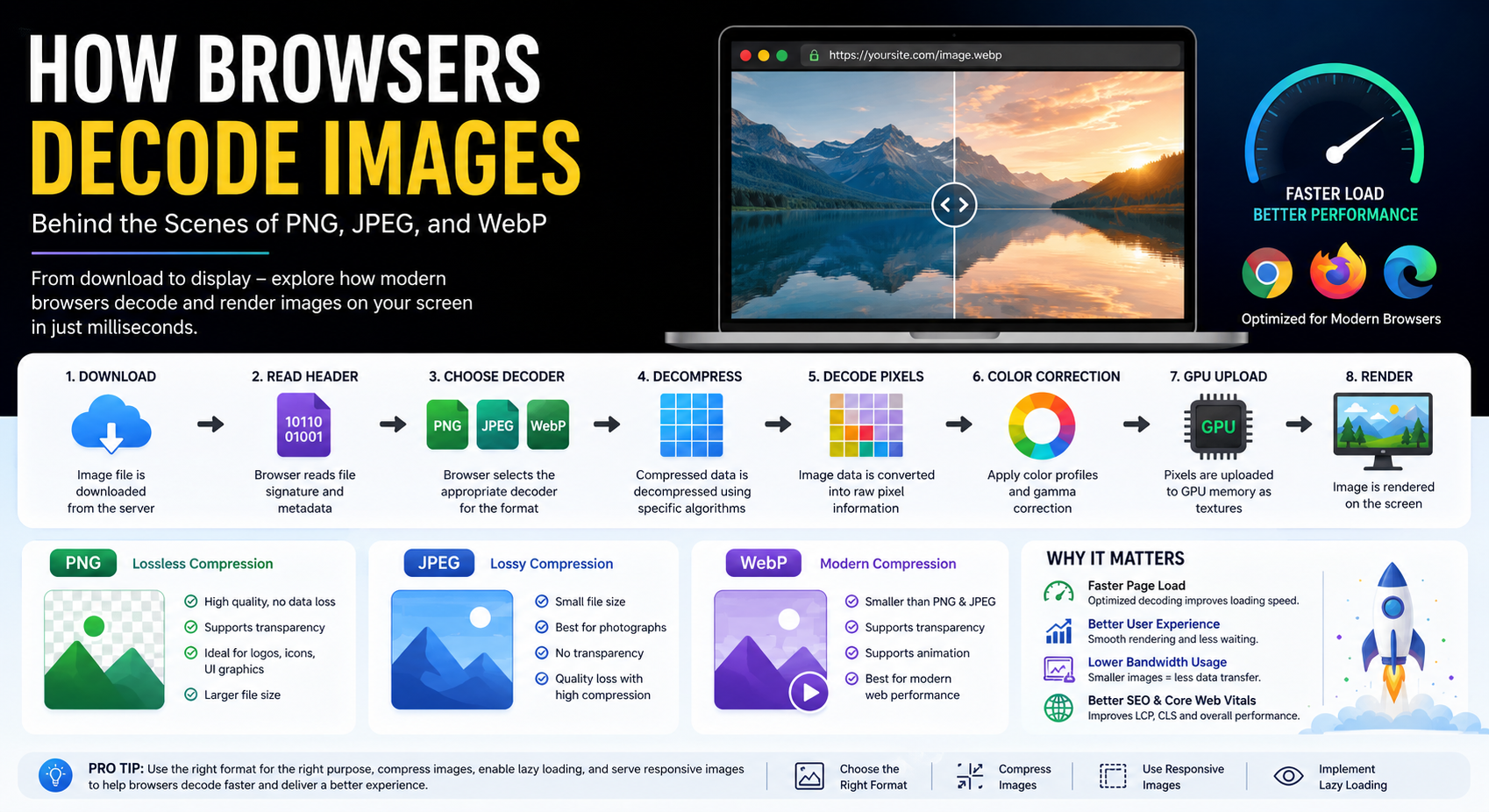
How Browsers Decode Images: Behind the Scenes of PNG, JPEG, and WebP
Images are one of the most important elements of modern websites. Whether you’re viewing product photos, social media posts, dashboards, or interactive applications, your browser is constantly downloading, decoding, and rendering images behind the scenes.
Most developers know that PNG, JPEG, and WebP differ in quality and compression, but far fewer understand what actually happens after an image reaches the browser.
In this article, we’ll explore the complete lifecycle of image decoding, explain how browsers process different image formats, and share practical optimization tips that improve website speed and user experience.
Why Image Decoding Matters
Image decoding is the process of converting compressed image data into raw pixels that your GPU or display can render.
Every image displayed on a webpage goes through several stages:
- Downloading
- Parsing the file
- Decompressing image data
- Decoding pixels
- Applying color profiles
- Uploading pixels to the GPU
- Rendering on the screen
Although these steps happen in milliseconds, inefficient images can significantly increase page load time, CPU usage, battery consumption, and memory usage.
For modern websites, optimizing image decoding is just as important as reducing image file size.
The Browser Image Pipeline
A simplified browser image pipeline looks like this:
Server
   │
   ▼
Download Image
   │
   ▼
Read Image Header
   │
   ▼
Choose Decoder
   │
   ▼
Decompress Data
   │
   ▼
Decode Pixels
   │
   ▼
Color Correction
   │
   ▼
GPU Upload
   │
   ▼
Render to Screen
Every browser—including Chrome, Firefox, Safari, and Edge—follows a similar workflow, although their internal image libraries differ.
Step 1: Downloading the Image
When HTML contains an image:
<img src="mountains.webp" alt="Landscape">
the browser:
- Resolves the URL
- Sends an HTTP request
- Downloads the compressed image
- Stores it in memory or cache
The browser doesn’t immediately display the image. Instead, it first determines which decoder should process the file.
Step 2: Reading the Image Header
Every image format begins with a unique file signature.
For example:
| Format | Signature |
|---|---|
| PNG | 89 50 4E 47 |
| JPEG | FF D8 FF |
| WebP | RIFF + WEBP |
The browser reads only the first few bytes to identify:
- image type
- dimensions
- color depth
- metadata
- transparency support
- animation support
This information determines which decoding algorithm should be used.
How PNG Images Are Decoded
PNG uses lossless compression, meaning no image data is discarded.
The browser performs several operations:
- Read PNG chunks
- Parse metadata
- Inflate compressed data using DEFLATE
- Reverse PNG filtering
- Reconstruct pixel values
- Convert to RGBA
PNG files contain multiple chunks:
- IHDR
- IDAT
- PLTE
- tEXt
- IEND
The largest processing cost comes from reversing PNG filters and DEFLATE decompression.
Advantages
- Perfect image quality
- Supports transparency
- Great for UI graphics
- Excellent for screenshots
Drawbacks
- Larger file sizes
- Slower decoding than JPEG
- Higher memory usage
How JPEG Images Are Decoded
JPEG uses lossy compression.
Unlike PNG, JPEG stores frequency information rather than exact pixel values.
The browser decoding process includes:
- Parse JPEG markers
- Decode Huffman tables
- Perform inverse quantization
- Run Inverse Discrete Cosine Transform (IDCT)
- Convert YCbCr to RGB
- Display pixels
This process is extremely optimized in modern browsers.
Advantages
- Very small files
- Fast decoding
- Excellent for photographs
Drawbacks
- Compression artifacts
- No transparency
- Quality decreases after repeated editing
How WebP Images Are Decoded
WebP was developed by Google to combine the strengths of PNG and JPEG.
Depending on the file type, WebP uses:
- VP8 compression (lossy)
- VP8L compression (lossless)
The browser:
- Reads RIFF container
- Detects VP8 or VP8L
- Decodes image blocks
- Restores prediction values
- Converts pixels
- Renders the image
Modern browsers contain highly optimized WebP decoders that are usually faster than PNG and competitive with JPEG.
Advantages
- Smaller files
- Transparency
- Animation support
- Better compression ratios
Drawbacks
- Slightly more CPU-intensive encoding
- Older browsers have limited support
Comparing PNG, JPEG, and WebP Decoding
| Feature | PNG | JPEG | WebP |
|---|---|---|---|
| Compression | Lossless | Lossy | Lossy/Lossless |
| Transparency | ✅ | ❌ | ✅ |
| Animation | ❌ | ❌ | ✅ |
| Typical File Size | Large | Medium | Small |
| Decode Speed | Medium | Fast | Fast |
| Best Use | UI, Logos | Photos | Modern Websites |
Hardware Acceleration
Modern browsers don’t perform all image processing on the CPU.
Instead, they use:
- GPU texture uploads
- Hardware rasterization
- Multi-threaded decoding
- SIMD instructions
- Parallel rendering pipelines
Chrome, Firefox, and Edge often decode multiple images simultaneously to improve scrolling performance.
Progressive JPEG vs Standard JPEG
Progressive JPEG improves perceived loading speed.
Instead of loading line by line, it displays:
Low Quality
      ↓
Medium Quality
      ↓
High Quality
Users see a blurry preview almost immediately while the browser continues decoding additional image data.
Browser Image Caching
Once decoded, browsers cache images to avoid repeated downloads.
Caching includes:
- HTTP cache
- Memory cache
- Disk cache
- GPU texture cache
Efficient caching reduces network traffic and speeds up page navigation.
Lazy Loading and Image Decoding
Modern browsers support lazy loading:
<img src="photo.webp" loading="lazy" alt="Nature">
The browser delays downloading and decoding until the image is close to the viewport.
Benefits include:
- Faster initial page load
- Lower memory usage
- Reduced CPU work
- Better Core Web Vitals
Asynchronous Image Decoding
Browsers increasingly decode images asynchronously.
Instead of blocking page rendering:
const img = new Image();

img.decoding = "async";
img.src = "hero.webp";
The browser performs decoding in the background and updates the page when decoding completes.
This results in smoother scrolling and better responsiveness.
Common Bottlenecks During Image Decoding
Large websites often experience performance issues due to:
- Oversized images
- Excessive PNG usage
- Thousands of thumbnails
- Missing lazy loading
- Poor compression
- Unnecessary metadata
- Large animated images
These issues increase decode time and memory usage.
Best Practices for Developers
To improve browser image performance:
- Use WebP whenever possible.
- Reserve PNG for graphics that require transparency or pixel-perfect quality.
- Use JPEG for high-resolution photographs.
- Compress images before deployment.
- Resize images to match their display dimensions.
- Enable browser caching.
- Implement lazy loading.
- Remove unnecessary EXIF metadata.
- Use responsive images with the
<picture>element andsrcset. - Test performance using Lighthouse and browser developer tools.
Future Image Formats
While PNG, JPEG, and WebP dominate today’s web, browsers are rapidly adopting newer formats such as:
- AVIF
- JPEG XL (limited browser support)
- HEIC (platform-specific)
- JPEG XS
These formats promise even smaller file sizes while maintaining exceptional image quality.
Conclusion
Every image displayed in a browser undergoes an impressive sequence of operations—from downloading compressed data to decoding millions of pixels and rendering them on the screen in just a fraction of a second.
Understanding how browsers decode PNG, JPEG, and WebP images helps developers make smarter decisions about image formats, compression strategies, and website optimization. By selecting the right format for each use case and following modern performance best practices, you can build faster websites, improve user experience, reduce bandwidth consumption, and achieve better Core Web Vitals scores.
As browsers continue evolving, efficient image delivery and decoding will remain one of the most important aspects of modern web performance optimization.
Frequently Asked Questions (FAQs)
1. How do browsers decode PNG images differently from JPEG images?
A1: Browsers decode PNG images using lossless DEFLATE decompression and reverse PNG filtering to reconstruct every pixel exactly, while JPEG images are decoded using lossy compression techniques such as Huffman decoding and the Inverse Discrete Cosine Transform (IDCT), making JPEG files smaller but not pixel-perfect.
2. Why is WebP generally smaller than PNG and JPEG?
A2: WebP uses modern compression algorithms that provide better compression efficiency than traditional PNG and JPEG formats. It supports both lossy and lossless compression, allowing developers to achieve smaller file sizes without significantly sacrificing image quality.
3. What happens after a browser downloads an image?
A3: After downloading an image, the browser identifies its format, selects the appropriate decoder, decompresses the image data, converts it into pixel information, applies color corrections if necessary, uploads the decoded pixels to the GPU, and finally renders the image on the screen.
4. Does lazy loading improve image decoding performance?
A4: Yes. Lazy loading delays the download and decoding of images until they are close to entering the user’s viewport. This reduces initial page load time, lowers CPU and memory usage, and improves Core Web Vitals metrics such as Largest Contentful Paint (LCP).
5. Which image format should developers use for modern websites?
A5: The best format depends on the content. WebP is an excellent choice for most websites because it offers superior compression and supports transparency. JPEG remains ideal for photographs, while PNG is best suited for logos, icons, screenshots, and graphics that require lossless quality and transparent backgrounds.