Last Updated: 03 July, 2026
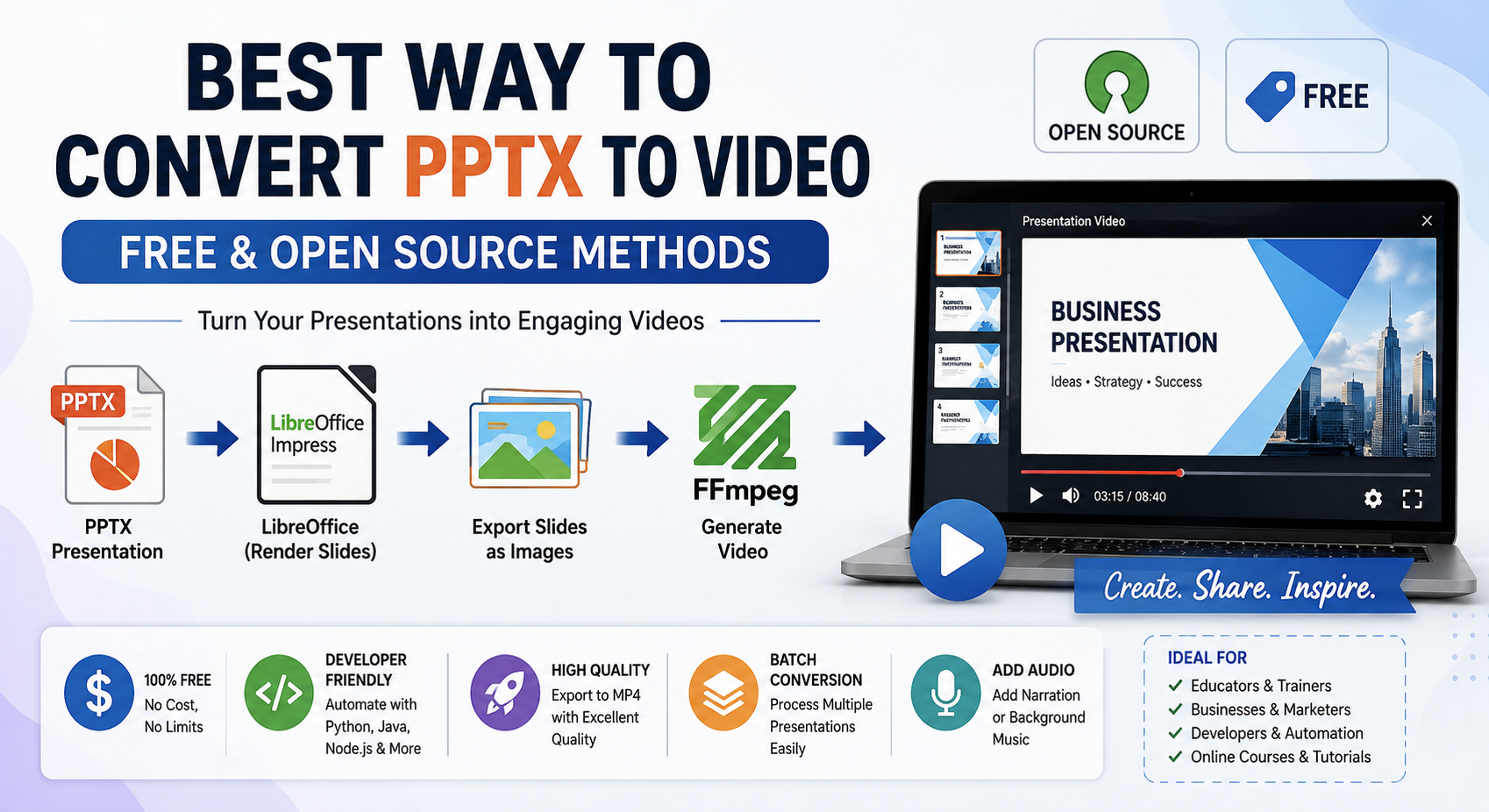
Best Way to Convert PPTX to Video (Free & Open Source Methods)
PowerPoint presentations are one of the most widely used formats for sharing ideas, business reports, educational lectures, and product demonstrations. However, sharing a PPTX file isn’t always the most convenient option. Recipients may not have presentation software installed, animations may behave differently across platforms, and online viewers often don’t preserve every visual effect.
Converting a PPTX presentation into a video solves these problems. A video can be played on virtually any device, uploaded to YouTube, embedded in websites, or shared through social media without worrying about compatibility issues.
The good news is that you don’t need expensive commercial software to accomplish this. Several free and open-source tools allow developers, educators, and businesses to automate PPTX-to-video conversion while maintaining excellent quality.
In this guide, we’ll explore the best open-source methods, compare their strengths, and walk through practical conversion workflows.
Why Convert PPTX to Video?
A presentation video offers several advantages over the original PowerPoint file.
Some common benefits include:
- Universal compatibility
- Easy sharing through email and social media
- Upload directly to YouTube or Vimeo
- No dependency on Microsoft PowerPoint
- Better preservation of slides for viewers
- Ideal for online courses and tutorials
- Perfect for digital signage and kiosks
Unlike PPTX files, videos don’t require viewers to install presentation software.
Common Video Formats
Most conversion workflows generate one of the following formats.
| Format | Best For |
|---|---|
| MP4 | Universal compatibility |
| WebM | Modern web applications |
| AVI | Legacy systems |
| MOV | Apple ecosystem |
| MKV | High-quality archival |
For most users, MP4 (H.264) provides the best balance of quality, file size, and compatibility.
Open Source Method 1: LibreOffice Impress + FFmpeg
This is the most popular open-source workflow.
Instead of converting directly, the presentation is first exported as images (or PDF), then combined into a video using FFmpeg.
How it Works
PPTX
   ↓
LibreOffice
   ↓
PNG Images
   ↓
FFmpeg
   ↓
MP4 Video
Export Slides
libreoffice \
--headless \
--convert-to png presentation.pptx
Each slide becomes an individual PNG image.
Example:
slide1.png
slide2.png
slide3.png
Generate Video
ffmpeg \
-framerate 1 \
-i slide%d.png \
-c:v libx264 \
-pix_fmt yuv420p \
presentation.mp4
The resulting MP4 plays smoothly on nearly every device.
Advantages
- Completely free
- Cross-platform
- Excellent image quality
- Easy automation
- Perfect for server-side conversion
Limitations
- Doesn’t preserve PowerPoint animations
- Slide transitions require manual timing
Open Source Method 2: LibreOffice PDF + FFmpeg
Some users prefer exporting slides as PDF before generating images.
PPTX
   ↓
PDF
   ↓
Images
   ↓
Video
Export PDF:
libreoffice \
--headless \
--convert-to pdf presentation.pptx
Convert PDF pages into images:
pdftoppm \
-png \
presentation.pdf \
slide
Create the video:
ffmpeg \
-framerate 1 \
-i slide-%d.png \
-c:v libx264 \
presentation.mp4
This workflow often produces highly consistent rendering.
Open Source Method 3: Python Automation
Python makes batch conversion extremely simple.
Example:
import subprocess

subprocess.run([
    "libreoffice",
    "--headless",
    "--convert-to",
    "png",
    "presentation.pptx"
])

subprocess.run([
    "ffmpeg",
    "-framerate", "1",
    "-i", "slide%d.png",
    "-c:v", "libx264",
    "presentation.mp4"
])
This approach is ideal for:
- CI/CD pipelines
- Cloud applications
- Scheduled jobs
- Bulk document processing
Open Source Method 4: Java-Based Automation
Java applications can automate the same workflow.
Example:
ProcessBuilder process = new ProcessBuilder(
    "libreoffice",
    "--headless",
    "--convert-to",
    "png",
    "presentation.pptx"
);

process.start().waitFor();
Developers can then execute FFmpeg from Java to build the final MP4.
This solution integrates well with enterprise applications and document management systems.
Open Source Method 5: Node.js Automation
Node.js is another excellent option for web services.
const { exec } = require("child_process");

exec(
  'libreoffice --headless --convert-to png presentation.pptx',
  (err) => {
    if (err) return;

    exec(
      'ffmpeg -framerate 1 -i slide%d.png -c:v libx264 presentation.mp4'
    );
  }
);
This workflow is commonly used in:
- SaaS platforms
- Online document converters
- REST APIs
- Serverless applications
Adding Audio Narration
Presentation videos become much more engaging when narration is included.
Simply merge your audio file while creating the video.
ffmpeg \
-i presentation.mp4 \
-i narration.mp3 \
-c:v copy \
-c:a aac \
output.mp4
This produces a fully narrated presentation video suitable for tutorials or webinars.
Controlling Slide Duration
Slides can remain visible for a custom amount of time.
Example:
ffmpeg \
-framerate 0.2 \
-i slide%d.png \
-c:v libx264 \
presentation.mp4
Here each slide appears for approximately five seconds.
Creating Smooth Transitions
Although PowerPoint transitions aren’t automatically preserved, FFmpeg offers several transition effects.
Examples include:
- Fade
- Dissolve
- Wipe
- Zoom
- Crossfade
These transitions can create professional-looking presentation videos.
Batch Convert Multiple Presentations
Large organizations often need to convert hundreds of PPTX files.
Example Bash script:
for file in *.pptx
do
    libreoffice --headless --convert-to png "$file"

    ffmpeg \
    -framerate 1 \
    -i slide%d.png \
    "${file%.pptx}.mp4"
This approach significantly reduces manual effort.
Performance Tips
For faster conversion:
- Use SSD storage
- Convert presentations in parallel
- Reduce unnecessarily large images
- Choose an appropriate frame rate
- Compress output using H.264
- Remove unused embedded media
- Use headless LibreOffice on servers
These practices improve both speed and storage efficiency.
Best Open Source Tools
| Tool | Purpose |
|---|---|
| LibreOffice Impress | Open PPTX files |
| FFmpeg | Generate videos |
| Poppler | Convert PDF pages to images |
| ImageMagick | Image processing |
| Python | Workflow automation |
| Java | Enterprise automation |
| Node.js | Web service integration |
Together, these tools provide a powerful and completely free PPTX-to-video solution.
Common Challenges
Animations
Most open-source workflows export only static slides.
Embedded Videos
Embedded media may require separate processing.
Fonts
Install required fonts on the conversion server to maintain consistent rendering.
Large Presentations
Very large presentations benefit from batch processing and sufficient system memory.
Best Practices
For the best results:
- Use high-resolution images
- Export to MP4 (H.264)
- Maintain consistent fonts
- Optimize image sizes
- Add narration separately
- Test videos on multiple devices
- Automate repetitive conversions
Following these recommendations ensures professional-quality presentation videos.
Conclusion
Converting PPTX presentations into videos is easier than ever thanks to the open-source ecosystem. By combining LibreOffice Impress with FFmpeg, developers and businesses can create high-quality MP4 videos without relying on proprietary software.
Whether you’re building a document conversion service, creating online training content, or automating enterprise workflows, these free tools provide flexibility, scalability, and excellent output quality. With support for scripting in Python, Java, and Node.js, it’s easy to integrate PPTX-to-video conversion into virtually any application or workflow.
Frequently Asked Questions (FAQ)
Q1. Can I convert PPTX to MP4 without Microsoft PowerPoint?
A1: Yes, you can use free tools like LibreOffice and FFmpeg to convert PPTX presentations into MP4 videos without Microsoft PowerPoint.
Q2. Which open-source tool is best for PPTX-to-video conversion?
A2: A combination of LibreOffice Impress for slide rendering and FFmpeg for video creation is one of the most reliable open-source solutions.
Q3. Can FFmpeg convert PowerPoint files directly?
A3: Most open-source methods preserve slide content but may not fully support PowerPoint animations and transition effects.
Q4. How can I add narration to a presentation video?
A4: Yes, you can automate batch conversions using scripts written in Python, Java, Node.js, or shell scripting with LibreOffice and FFmpeg.
Q5. Is it possible to batch convert multiple PPTX files into videos?
A5: Yes, FFmpeg allows you to merge narration, background music, or other audio tracks into your presentation video.