Last Updated: 25 Nov, 2026
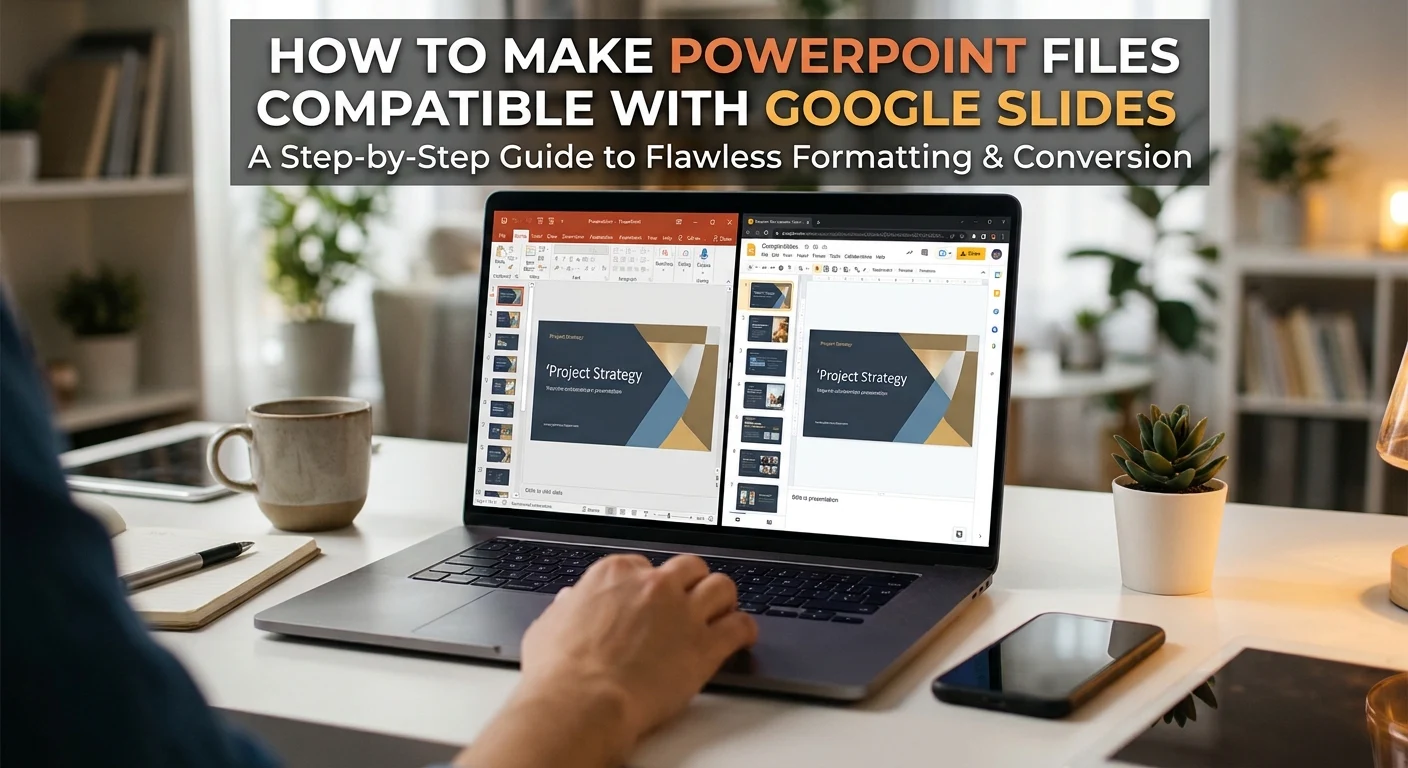
How to Make PowerPoint Files Compatible with Google Slides
Moving a presentation from Microsoft PowerPoint to Google Slides should be effortless, yet anyone who has uploaded a complex .pptx deck to Google Drive knows how quickly things can go sideways. Custom typography suddenly wraps onto extra lines, Morph transitions disappear, Excel-linked charts freeze, and carefully aligned SmartArt graphics shift out of place.
While Google Slides natively opens and edits PowerPoint formats—including .pptx, .ppt, and .potx—the two platforms render underlying XML structures, fonts, and media engines differently. Preparing your deck before uploading and choosing the right conversion workflow makes the difference between a broken presentation and a seamless cloud transition.
Supported PowerPoint Formats in Google Slides
Before making design adjustments, verify that your presentation uses a modern container format supported by Google Workspace:
| File Extension | Format Name | Google Slides Compatibility |
|---|---|---|
| .PPTX | PowerPoint Open XML Presentation | Best. Fully supported for direct viewing, editing, and native conversion. |
| .PPT | Legacy PowerPoint 97–2003 Binary | Moderate. Opens in Slides, though older binary compression often triggers layout and chart glitches. |
| .POTX | PowerPoint Design Template | Good. Can be uploaded and converted into a reusable Google Slides theme. |
| .PPTM | Macro-Enabled Presentation | Limited. VBA macros are stripped out upon import for browser security. |
If you are working with an older .ppt or .pptm file, open it in desktop PowerPoint first and save a clean copy as a standard .pptx file before doing anything else.
Step 1: Prepare Your PowerPoint Deck Before Uploading
The easiest way to prevent formatting headaches is to standardize elements inside PowerPoint before the file ever touches Google Drive.
1. Replace Desktop Fonts with Google Fonts
Typography mismatch is the number one cause of broken slide layouts. PowerPoint relies on locally installed system fonts (such as Calibri, Segoe UI, or proprietary corporate typefaces), whereas Google Slides renders web-based Google Fonts. When Google Slides encounters an unsupported font, it substitutes a metric-incompatible fallback font, causing text boxes to overflow.
- The Fix: Download and install cross-platform Google Fonts—such as Roboto, Open Sans, Lato, Montserrat, or Merriweather—on your computer and apply them in PowerPoint before uploading.
- Quick Bulk Replacement: In PowerPoint, go to Home > Replace > Replace Fonts to swap out every instance of a desktop font across your entire deck in seconds.
2. Convert SmartArt into Native Shapes
Google Slides does not have a direct equivalent to Microsoft’s SmartArt engine. Complex SmartArt diagrams frequently lose their styling, drop text hierarchy, or become uneditable upon import.
- The Fix: Right-click your SmartArt graphic in PowerPoint, select Convert to Shapes, and ungroup the elements if needed. Standard vector shapes transfer cleanly into Google Slides while remaining fully editable.
3. Standardize Embedded Audio and Video
PowerPoint supports a wide variety of local media codecs—including .wmv, .avi, and .mov—that web browsers struggle to play reliably.
- The Fix: Convert embedded videos to MP4 (H.264 codec) and audio tracks to MP3 or WAV before inserting them. Alternatively, upload heavy video files to YouTube or Google Drive first and link them natively once the deck is inside Google Slides.
4. Simplify Complex Animations and Transitions
Advanced PowerPoint effects like Morph, 3D rotations, Custom Motion Paths, and click-triggered animations do not exist in Google Slides. Google Slides automatically downgrades unsupported transitions to a basic Fade or removes them entirely.
- The Fix: Stick to universal effects—such as Fade, Appear, Fly In, and Wipe—and avoid stacking multiple simultaneous animations on a single object.
5. Flatten Complex Charts and OLE Objects
Charts linked dynamically to external Excel workbooks, custom 3D charts, and embedded OLE objects (like Word tables or PDFs) often break or lose custom axis formatting during conversion.
- The Fix: If you do not need to edit the chart numbers inside Google Slides, right-click the chart in PowerPoint and select Save as Picture (exporting as a high-resolution PNG or SVG). Replace the live chart with the crisp image so your visual styling stays 100% locked.
Step 2: Choose the Right Conversion Method
Once your .pptx file is optimized, you have two ways to bring it into Google Slides depending on how you plan to collaborate.
Method A: Convert to Native Google Slides Format (Recommended)
Converting the file into a true Google Slides document unlocks full real-time collaboration, version history, and cloud comment threads.
- Open Google Drive and click + New > File upload to upload your
.pptxfile. - Double-click the uploaded file to open it in Google Slides preview/compatibility mode.
- In the top menu bar, click File > Save as Google Slides.
Google Drive will generate a brand-new native Google Slides copy alongside your original .pptx backup.
Method B: Import Slides into an Existing Deck
If you want to merge specific PowerPoint slides into an active Google Slides presentation without creating duplicate files, use the built-in importer:
- Open your target presentation in Google Slides.
- Navigate to File > Import slides.
- Switch to the Upload tab and drag in your
.pptxfile. - Select the specific slides you want (or click All).
- Keep the Keep original theme checkbox ticked at the bottom-right if you want to preserve your PowerPoint styling, then click Import slides.
Step 3: Post-Import Quality Check in Google Slides
Even after careful preparation, always run a quick visual audit after converting your presentation:
- Inspect the Slide Master: Go to View > Theme builder to verify that background graphics, footer placeholders, and theme colors imported cleanly across all layouts.
- Verify Hyperlinks and Action Buttons: Click through internal slide jumps and external URLs to ensure relative paths did not break.
- Test Presenter View: Run through the presentation in Slideshow mode to confirm media playback, speaker notes, and transition timing behave as expected.
Frequently Asked Questions (FAQ)
Q1. Can I edit a PowerPoint file directly in Google Slides without converting it?
Yes, Google Slides allows you to open and edit .pptx files directly in Office Compatibility Mode while keeping the original file extension intact.
Q2. Why does my text shift or overflow when I open a PowerPoint file in Google Slides?
Text shifts occur when PowerPoint uses locally installed desktop fonts that Google Slides replaces with differently sized web fonts.
Q3. Does converting PowerPoint to Google Slides overwrite my original .pptx file?
No, selecting File > Save as Google Slides creates a separate cloud copy while leaving your original .pptx file untouched in Google Drive.
Q4. How do I stop PowerPoint SmartArt from breaking in Google Slides?
Right-click the SmartArt diagram in PowerPoint and select Convert to Shapes before uploading so Google Slides treats it as standard editable vectors.
Q5. Which video format works best when moving from PowerPoint to Google Slides?
Standard MP4 videos encoded with H.264 offer the highest playback compatibility across both desktop PowerPoint and browser-based Google Slides.