Last Updated: 19 Aug, 2026
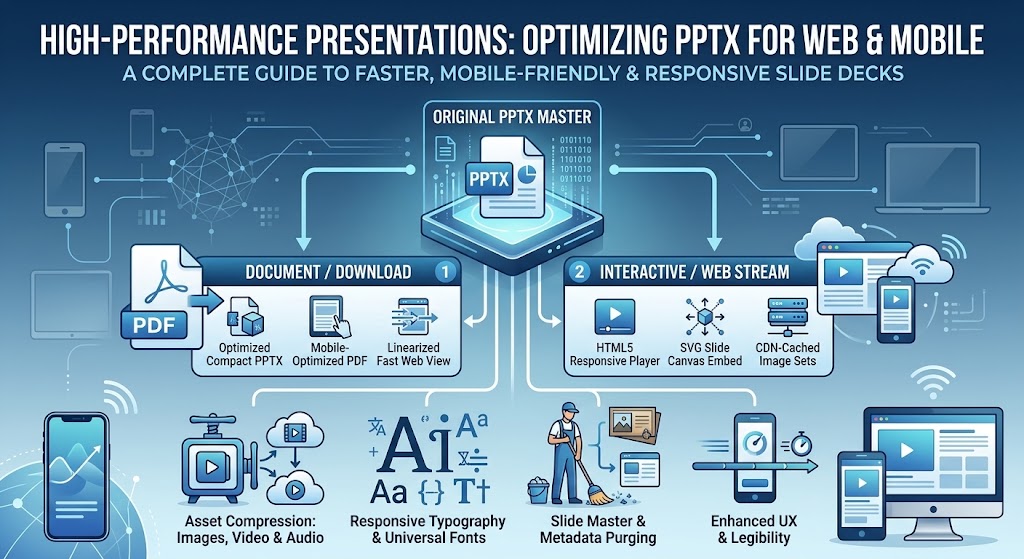
Optimizing PowerPoint (PPTX) for Web & Mobile
Modern presentations no longer live exclusively on conference room projectors. Today, pitch decks, training modules, sales collateral, and educational slide decks are shared over cellular networks, viewed on smartphones, embedded into web portals, and streamed across distributed teams.
However, standard .pptx files created in desktop software like Microsoft PowerPoint, Apple Keynote, or Google Slides are rarely built for the web. An unoptimized presentation can easily bloat to 100+ megabytes due to uncompressed 4K photography, embedded raw audio, dozens of unused slide layouts, and fully packaged font families. When served on the web or opened on mobile devices, these heavy files cause:
- Slow load times and excessive mobile data consumption
- Broken typography and awkward text reflow
- Laggy touch navigation and rendering crashes on mobile browsers
- Poor accessibility and low engagement rates
This comprehensive guide outlines actionable technical strategies and UX best practices to optimize your PPTX files for seamless web and mobile delivery.
1. Asset & Media Optimization: Trimming the Dead Weight
Media files account for over 85% of total PPTX file bloat. Because PowerPoint preserves original asset sizes unless told otherwise, dropping a 24-megapixel camera photo onto a slide stores the entire 15 MB file in the background—even if you scale it down to a thumbnail.
A. Intelligent Image Compression
- Target Resolution (DPI/PPI): For mobile and standard desktop screens, images do not need 300 DPI (print standard). Target 96 to 150 PPI. A 1920×1080 slide canvas only requires images scaled to the maximum dimensions they occupy on the screen.
- Modern Formats: Convert massive uncompressed PNGs and BMPs to optimized JPEGs (for photographs) or SVGs/vector shapes (for icons and line art).
- Native PowerPoint Compression:
- Select any image in your deck.
- Go to Picture Format > Compress Pictures.
- Uncheck “Apply only to this picture” to process the entire presentation.
- Select Web (150 ppi) or Email (96 ppi).
- Check “Delete cropped areas of pictures” to permanently remove hidden, unused image data.
B. Video and Audio Optimization
Embedded 4K or high-bitrate 1080p video clips will instantly cripple mobile performance.
- Transcode and Downsample: Convert videos to H.264 / MP4 with AAC audio. Restrict resolution to 720p (1280×720) or efficient 1080p, keeping the bitrate between 1.5 Mbps and 2.5 Mbps.
- Compress Inside PowerPoint: Navigate to File > Info > Compress Media and select Internet Quality (720p) or Low Quality (480p) for pure mobile distribution.
- Stream Instead of Embedding: For web viewers and client-facing portals, host large video files externally (Vimeo, YouTube, AWS CloudFront) and embed lightweight interactive links or streaming frames rather than bundling raw binaries inside the
.pptx.
2. Typography, Fonts, and Layout Integrity
One of the biggest issues when opening PPTX files on iOS, Android, or third-party web viewers is font substitution. If a user’s mobile device lacks your custom brand font, the OS substitutes standard system fonts (like Arial, Roboto, or Times New Roman), causing text overflows, broken line wraps, and unreadable slide layouts.
A. Font Subsetting vs. Standard Typography
- Embed Only Used Characters: If you must use custom brand fonts, configure PowerPoint to embed only the characters used in the deck rather than the entire multi-weight font family.
- Go to Options / Preferences > Save > check Embed fonts in the file > select Embed only the characters used in the presentation.
- Use Universal Web/System Fonts: For maximum performance and 0 KB overhead, design decks using universal fonts available across iOS, Android, macOS, and Windows (e.g., Helvetica Neue, Segoe UI, Roboto, Open Sans, Arial, Georgia).
B. Mobile-First Layout and Readability
Mobile screens require higher contrast and larger visual hierarchy to remain legible on 6-inch viewports:
- Aspect Ratio: Always standardize on 16:9 widescreen. Legacy 4:3 layouts result in heavy pillarboxing (black sidebars) on modern smartphones.
- Minimum Font Size: Avoid body copy below 18 pt; headings should be at least 28–36 pt so users can read content without pinching and zooming.
- Breathing Room & Touch Targets: Maintain generous whitespace around interactive elements, buttons, and hyperlinks to ensure effortless single-finger tapping on touchscreens.
3. Structural Cleaning: Purging Slide Master & XML Bloat
Every .pptx file is essentially a renamed .zip archive containing XML files, theme definitions, and media folders. Over time, copy-pasting slides from external templates introduces invisible bloat.
A. Clean the Slide Master
- Open View > Slide Master.
- Review the template hierarchy on the left panel. Delete all unused layout templates, orphaned color palettes, and duplicate master slides.
- Remove legacy custom animations and complex multi-layered transitions that cause frame drops on mobile hardware.
B. Inspect and Strip Metadata
Hidden revision histories, comments, slide notes, and off-stage slide scratchpads increase file size and create security risks.
- Navigate to File > Info > Check for Issues > Inspect Document.
- Remove document properties, personal info, off-slide content, presentation notes, and hidden slides.
C. Manual Deep-Cleaning via ZIP Inspection (Power User Trick)
- Change your file extension from
presentation.pptxtopresentation.zip. - Extract the archive and open the
ppt/media/folder. - Sort files by size to immediately identify rogue assets (such as uncompressed TIFFs or 50 MB background graphics).
- Compress those specific files externally, replace them in the folder, and re-zip the directory back to
.pptx.
4. Modern Delivery Pipelines for Web and Mobile
Serving raw .pptx download links creates friction: mobile users must download large files, launch external apps, and endure rendering discrepancies. Consider these web-optimized delivery formats:
| Source Master | Delivery Pipeline | Delivery Format | Key Features & Optimizations |
|---|---|---|---|
| Original PPTX Master | Document / Download | Static File Distribution | • Optimized Compact PPTX• Mobile-Optimized PDF• Linearized Fast Web View |
| Original PPTX Master | Interactive / Web Stream | Browser & Cloud Viewers | • HTML5 Responsive Player• SVG Slide Canvas Embed• CDN-Cached Image Sets |
1. Vector PDF with Linearization (Fast Web View)
If interactivity is not required, export the PPTX to a web-optimized PDF.
- Enable Fast Web View (Linearization) so multi-page documents stream page-by-page rather than requiring a 100% download before rendering.
- PDFs guarantee 1:1 visual fidelity across all iOS and Android PDF engines.
2. HTML5 Presentation Frameworks
Convert slides into interactive HTML5/SVG components (using tools like Reveal.js, Marp, or modern cloud document APIs).
- Benefits: Near-zero initial load times, native browser rendering, responsive viewport scaling, and perfect SEO indexability for public decks.
3. Dedicated Cloud Viewers & CDNs
Use cloud document viewers (e.g., PDF.js, Google Docs Viewer, or proprietary SaaS players) paired with a Content Delivery Network (CDN). The server renders lightweight raster or SVG tiles on demand based on the client’s screen density.
Summary Optimization Checklist
| Optimization Task | Target Metric | Impact |
|---|---|---|
| Image Resolution | 96 – 150 PPI (JPEG / WebP / SVG) | 60–80% size reduction |
| Embedded Videos | MP4 (H.264), 720p, <2.5 Mbps bitrate | Eliminates huge media files |
| Font Management | Subsetting or standard system fonts | Prevents mobile layout breaks |
| Slide Master | Zero unused layouts / master templates | Removes orphan styles & assets |
| Document Inspection | Purge hidden data, notes & cropped areas | Enhances privacy & decreases size |
| Aspect Ratio | 16:9 Widescreen | Perfect fit on modern mobile displays |
Frequently Asked Questions (FAQ)
What is the ideal file size for a web or mobile-shared PPTX file?
An optimized mobile-ready PPTX should ideally stay under 5 MB to 10 MB to ensure fast downloads and prevent mobile browser crashes.
Why do fonts change when opening a PPTX presentation on an iPhone or Android device?
Mobile operating systems lack many desktop fonts, causing the device to substitute system defaults unless fonts are embedded or universal fonts are used.
Does compressing pictures inside PowerPoint reduce visual quality on high-resolution displays?
When set to 150 PPI (Web), images retain crisp visual clarity on retina and mobile screens while eliminating imperceptible, high-bitrate print data.
Is it better to share a presentation as a PPTX or a PDF on mobile?
PDF is better for static, non-editable viewing because it guarantees exact typography and layout rendering across all mobile devices without requiring Microsoft Office.
How can I inspect which specific slides or media assets are causing file bloat in a PPTX?
Rename the .pptx file extension to .zip, extract the archive, and inspect the ppt/media/ directory to sort all embedded images and media by size.