Last Updated: 15 Jun, 2026
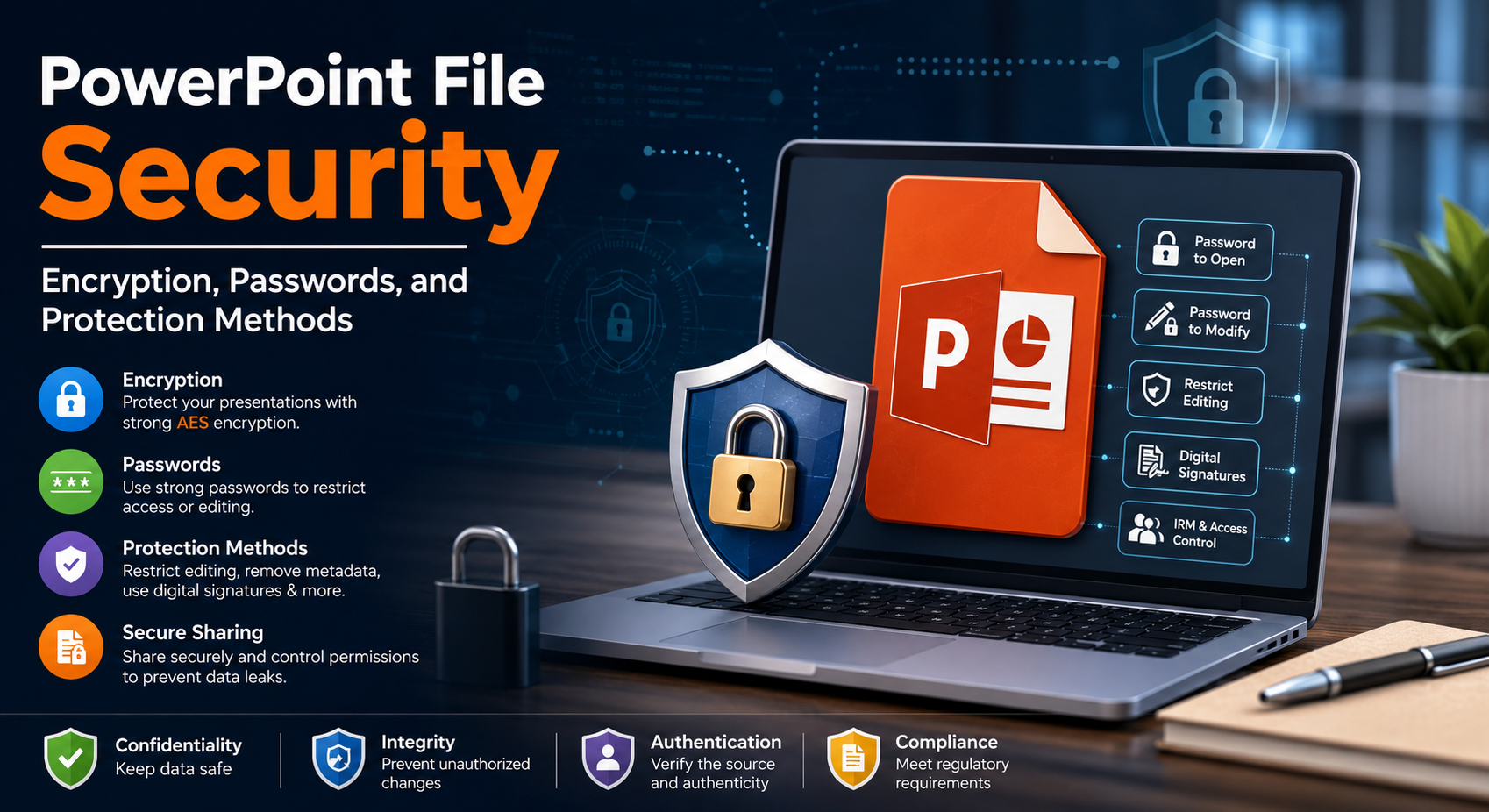
PowerPoint File Security: Encryption, Passwords, and Protection Methods
PowerPoint presentations often contain sensitive information such as business strategies, financial reports, research data, customer information, and intellectual property. Without proper protection, these files can be copied, modified, or accessed by unauthorized users.
Modern PowerPoint formats provide several security mechanisms that help protect presentations from accidental changes, data leaks, and cyber threats. From password protection and encryption to digital signatures and information rights management, understanding these features is essential for individuals, businesses, and developers.
In this guide, we’ll explore the various methods available to secure PowerPoint files and the best practices for protecting your presentations.
Why PowerPoint Security Matters
Presentation files frequently contain valuable and confidential information. Proper security helps organizations and users:
- Prevent unauthorized access.
- Protect intellectual property.
- Avoid accidental modifications.
- Secure customer and business data.
- Meet compliance requirements.
- Reduce the risk of information leakage.
Common contents stored in presentations include:
- Financial reports
- Product roadmaps
- Legal documentation
- Marketing plans
- Internal communications
- Technical designs
- Research findings
Understanding PowerPoint File Formats
PPT Format
The older PPT format uses a binary structure and provides limited security capabilities.
Limitations
- Weaker encryption.
- Easier password cracking.
- Reduced metadata protection.
- Outdated security mechanisms.
Because of these limitations, PPT files are generally not recommended for sensitive data.
PPTX Format
PPTX is the modern Office Open XML format introduced in Microsoft Office 2007.
Advantages
- Supports strong AES encryption.
- Better password protection.
- Improved compatibility.
- Enhanced recovery mechanisms.
- More secure document structure.
PPTX is the preferred format for secure presentations.
PowerPoint Encryption Explained
Encryption converts presentation contents into unreadable data that can only be accessed with the correct password.
When encryption is enabled:
- The file contents are encrypted.
- A key is generated from the password.
- Unauthorized users cannot read the data.
- Authorized users can decrypt and open the file.
Encryption provides one of the strongest layers of protection available for PowerPoint presentations.
Encryption Standards Used in PowerPoint
AES 128-bit Encryption
Older Office versions commonly use AES-128.
Benefits
- Good security.
- Fast performance.
- Suitable for standard business files.
Limitations
- Less secure than AES-256.
AES 256-bit Encryption
Modern versions of Microsoft Office use AES-256 encryption.
Benefits
- Enterprise-grade protection.
- Strong resistance against brute-force attacks.
- Excellent security for sensitive presentations.
Common Applications
- Legal documents
- Financial reports
- Government presentations
- Healthcare information
- Intellectual property
Password Protection Methods
PowerPoint supports several types of password protection.
Password to Open
This option requires users to enter a password before opening the presentation.
Advantages
- Encrypts the entire file.
- Prevents unauthorized access.
- Provides strong security.
Disadvantages
- Forgotten passwords may result in permanent loss of access.
Password to Modify
Users can view the file but need a password to edit it.
Benefits
- Prevents accidental changes.
- Useful for collaborative environments.
Limitation
- Does not fully secure the contents.
Read-Only Recommendation
PowerPoint can suggest opening files in read-only mode.
Benefits
- Reduces unintended edits.
- Easy to implement.
Limitation
- Can easily be bypassed.
Restricting Editing
Mark as Final
This feature informs users that the presentation is complete and discourages modifications.
Advantages
- Prevents accidental changes.
- Disables some editing features.
Limitation
- Does not provide real security.
Protected View
Protected View opens presentations inside a secure environment.
It helps protect users from:
- Malicious files.
- Unsafe embedded objects.
- Harmful content downloaded from the Internet.
Protected View is an important defense against cyber threats.
Digital Signatures
Digital signatures verify the authenticity and integrity of PowerPoint files.
Benefits
- Detect tampering.
- Verify document ownership.
- Build trust with recipients.
- Support legal and enterprise workflows.
Common Uses
- Corporate approvals.
- Legal documentation.
- Government presentations.
- Official reports.
Information Rights Management (IRM)
IRM provides advanced permission controls for presentations.
IRM Can Restrict
- Copying.
- Printing.
- Editing.
- Forwarding.
- Content sharing.
Benefits
- Improved security.
- Better compliance.
- Centralized permission management.
IRM is widely used in Microsoft 365 enterprise environments.
Securing Embedded Content
PowerPoint files frequently contain:
- Images
- Videos
- Audio
- PDFs
- Excel worksheets
- External links
- Macros
These components may introduce security risks.
Macro Security Best Practices
- Disable untrusted macros.
- Use digitally signed macros.
- Scan presentations before opening.
- Avoid files from unknown sources.
Metadata and Hidden Information
PowerPoint presentations may contain hidden metadata such as:
- Author names
- Revision history
- Comments
- Hidden slides
- Speaker notes
- Document properties
Sensitive information may accidentally be exposed when sharing presentations.
Before Sharing Presentations
Consider removing:
- Comments
- Hidden slides
- Personal information
- Revision history
- Embedded notes
Microsoft Office provides Document Inspector for detecting hidden information.
Best Practices for Strong Passwords
Strong passwords significantly improve security.
Recommended Password Characteristics
- 12–16 characters or longer.
- Combination of uppercase and lowercase letters.
- Numbers and symbols.
- Unique for every file.
- Avoid dictionary words.
Avoid Using
- Birth dates.
- Company names.
- Simple sequences.
- Common passwords.
Secure Sharing Methods
Presentation security extends beyond encryption.
Recommended Methods
Encrypted Cloud Storage
Provides controlled access and secure sharing.
Password Managers
Safely share passwords separately from files.
Secure Email Services
Protect presentations during transmission.
Expiring Download Links
Reduce long-term exposure to unauthorized access.
PowerPoint Security for Developers
Developers working with presentation APIs should implement additional security measures.
Recommended Practices
Encrypt Files Programmatically
Support:
- Password protection.
- AES encryption.
- Secure storage.
Validate Uploaded Files
Applications should:
- Scan for malware.
- Verify file integrity.
- Restrict file size.
- Block unsafe content.
Remove Metadata
Sanitize documents before distribution.
Implement Access Controls
Restrict presentations according to user permissions.
Common Security Mistakes
Many users unintentionally weaken their presentation security.
Using Weak Passwords
Simple passwords are easier to crack.
Sharing Passwords with Files
Passwords should always be shared separately.
Ignoring Metadata
Hidden information can reveal sensitive details.
Using Legacy PPT Format
Older formats provide weaker protection.
Disabling Protected View
This increases exposure to malicious files.
Future Trends in PowerPoint Security
Modern presentation security continues to evolve.
AI-Based Threat Detection
Artificial intelligence can identify suspicious behavior and malicious files.
Zero-Trust Security
Organizations increasingly verify user identity before granting access.
Cloud-Based Protection
Modern platforms support:
- Real-time monitoring.
- Permission revocation.
- Activity tracking.
- Behavioral analytics.
Stronger Encryption Technologies
Future Office versions may adopt even more advanced encryption mechanisms.
PowerPoint Security Checklist
Use the following checklist to improve presentation security:
- Use PPTX instead of PPT.
- Enable strong password protection.
- Use AES encryption.
- Remove hidden metadata.
- Disable unsafe macros.
- Use digital signatures.
- Share files securely.
- Keep Office updated.
- Use Information Rights Management.
- Scan presentations for malware.
Conclusion
PowerPoint presentations often contain highly valuable information that requires proper protection. Modern PPTX files support strong encryption, password protection, digital signatures, and advanced access controls that help prevent unauthorized access and data leaks.
By using strong passwords, securing embedded content, removing metadata, and following best practices for secure sharing, individuals and organizations can significantly improve the safety of their presentation files and reduce cybersecurity risks.
FAQ
1. What is the safest way to protect a PowerPoint presentation?
Using AES-encrypted password protection together with restricted editing permissions provides strong security.
2. Can PowerPoint passwords be cracked?
Weak passwords can sometimes be cracked, but strong AES-256 encrypted passwords are extremely difficult to break.
3. What is the difference between Password to Open and Password to Modify?
Password to Open restricts access to the presentation, while Password to Modify prevents unauthorized editing.
4. Does PowerPoint encryption protect embedded media?
Yes, encryption secures the entire presentation, including embedded images, videos, and objects.
5. Why should metadata be removed before sharing presentations?
Removing metadata prevents exposure of hidden comments, revision history, and author information.