Last Updated: 10 July, 2026
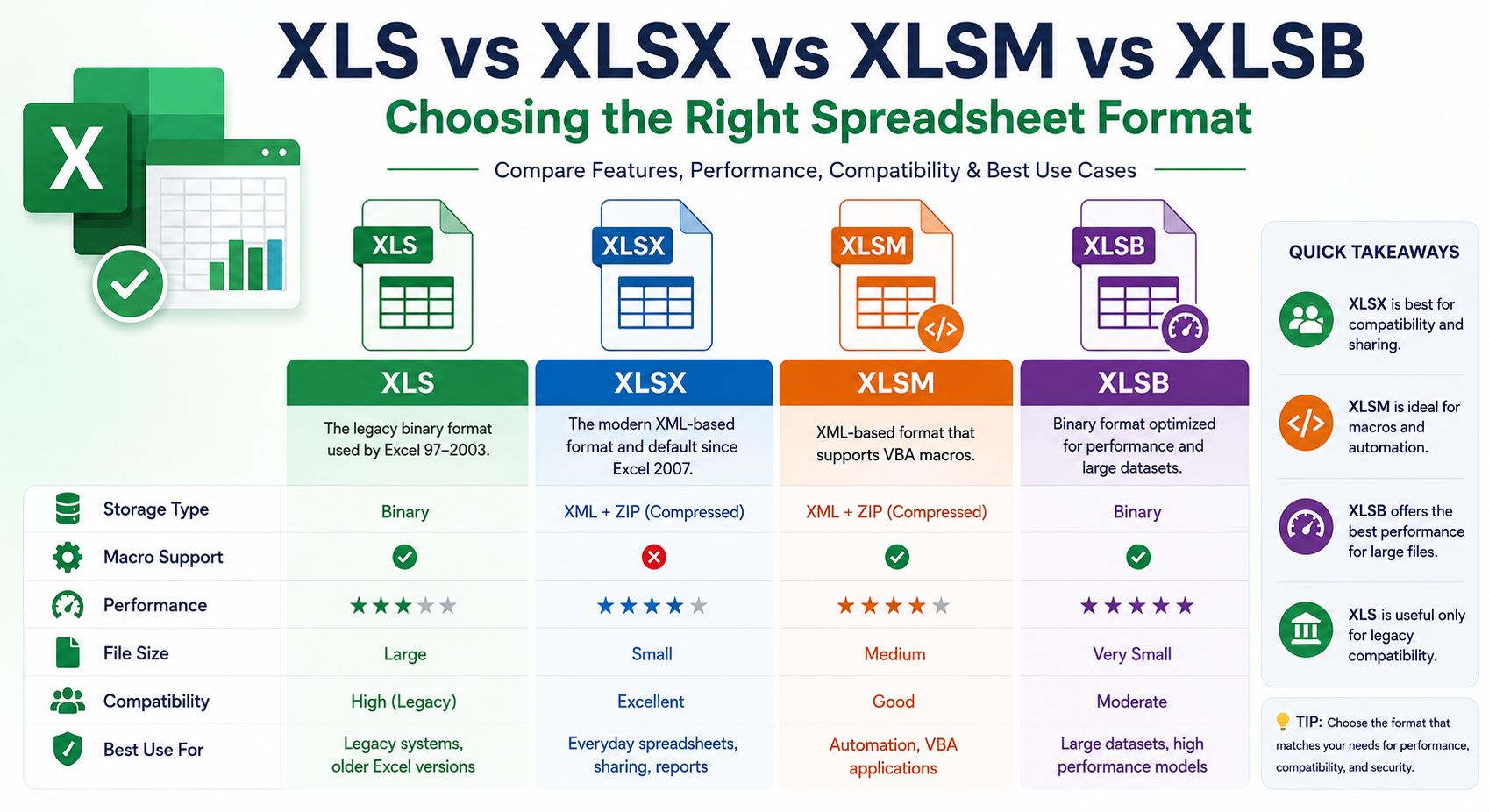
Compare XLS vs XLSX vs XLSM vs XLSB: Which Excel File Format Should You Use?
Microsoft Excel has been the industry standard for spreadsheets for decades, powering everything from personal budgeting to enterprise-level financial analysis. As Excel evolved, several spreadsheet formats emerged to address different needs, including compatibility, storage efficiency, performance, and automation.
Today, users often encounter four major Excel file formats: XLS, XLSX, XLSM, and XLSB. While they may appear similar, each format serves a unique purpose. Selecting the right one can improve file performance, reduce storage requirements, enhance security, and ensure compatibility with different applications.
In this guide, we’ll compare these four spreadsheet formats in detail, explain their strengths and limitations, and help you determine which format best fits your workflow.
Understanding Excel Spreadsheet Formats
Excel workbooks are more than simple tables of rows and columns. Modern spreadsheet files can contain:
- Worksheets
- Charts and graphs
- Pivot tables
- Formulas
- Conditional formatting
- Images and shapes
- Data connections
- VBA macros
- Embedded objects
Different file formats store these elements differently, affecting performance, compatibility, and file size.
What is XLS?
The XLS format is the original Microsoft Excel workbook format introduced with Excel 97. It stores spreadsheet data using a binary file structure.
For many years, XLS was the default format for Excel documents and remains widely recognized by older software and legacy business systems.
Advantages
- Excellent compatibility with legacy applications
- Supports VBA macros
- Widely supported by older spreadsheet software
- Reliable for maintaining older business workflows
Limitations
- Larger file sizes
- Limited worksheet capacity
- Less secure than newer formats
- Older binary architecture
- Reduced support for modern Excel features
What is XLSX?
XLSX became the default Excel format beginning with Microsoft Office 2007. It is based on the Office Open XML (OOXML) standard.
Instead of storing everything in one binary file, XLSX packages multiple XML files into a compressed ZIP archive, resulting in significantly smaller files and improved reliability.
Advantages
- Smaller file sizes
- Faster file transfer
- Better recovery from corruption
- Open XML standard
- Excellent compatibility with modern office software
- Improved security by excluding macros
Limitations
- Cannot store VBA macros
- XML processing may be slower for extremely large workbooks
What is XLSM?
The XLSM format is almost identical to XLSX but includes support for VBA macros.
This format is ideal for businesses and developers who automate repetitive tasks using Visual Basic for Applications (VBA).
Advantages
- Supports VBA macros
- Smaller than XLS
- Modern XML architecture
- Compatible with Excel automation
- Supports advanced spreadsheet features
Limitations
- Macro-enabled files may trigger security warnings
- Some spreadsheet applications disable macros by default
- Larger than XLSX when extensive VBA code is included
What is XLSB?
XLSB stands for Excel Binary Workbook. Although introduced with Excel 2007 alongside XLSX, it stores workbook data using a highly optimized binary structure instead of XML.
This makes XLSB one of the fastest Excel formats for opening, saving, and processing very large spreadsheets.
Advantages
- Very fast opening and saving
- Excellent performance with large datasets
- Smaller than XLSX for complex workbooks
- Supports VBA macros
- Lower memory usage
Limitations
- Less compatible with third-party spreadsheet software
- Harder to inspect manually because it isn’t XML-based
- Not ideal when interoperability is the highest priority
Feature Comparison
| Feature | XLS | XLSX | XLSM | XLSB |
|---|---|---|---|---|
| Introduced | Excel 97 | Excel 2007 | Excel 2007 | Excel 2007 |
| Storage Type | Binary | XML + ZIP | XML + ZIP | Binary |
| Macro Support | Yes | No | Yes | Yes |
| File Size | Large | Small | Medium | Very Small |
| Performance | Moderate | Good | Good | Excellent |
| Large Dataset Handling | Limited | Good | Good | Excellent |
| Modern Excel Features | Limited | Full | Full | Full |
| Third-Party Compatibility | High | Excellent | Good | Moderate |
| Easy Recovery | Moderate | Excellent | Excellent | Moderate |
File Size Comparison
One of the biggest differences between these formats is storage efficiency.
XLS
Older binary storage often produces larger files.
XLSX
Compressed XML significantly reduces storage requirements.
XLSM
Slightly larger than XLSX due to embedded VBA code.
XLSB
Often provides the smallest file size for complex workbooks while also delivering superior performance.
Performance Comparison
Performance becomes increasingly important when working with:
- Hundreds of thousands of rows
- Complex formulas
- Pivot tables
- Financial models
- Power Query data
- Business intelligence reports
XLS
Suitable for smaller legacy workbooks.
XLSX
Excellent for everyday spreadsheets.
XLSM
Good performance while supporting automation.
XLSB
The best choice for extremely large Excel workbooks.
Compatibility Comparison
Choosing the right format often depends on who will open your spreadsheet.
XLS
Works well with legacy Microsoft Office installations.
XLSX
Supported by nearly every modern spreadsheet application including:
- Microsoft Excel
- LibreOffice Calc
- Apache OpenOffice
- Google Sheets
- WPS Office
XLSM
Supported by Excel, although macro execution may vary in other office suites.
XLSB
Best supported in Microsoft Excel. Some third-party applications have limited support.
Security Considerations
Security is another major consideration.
XLSX
Because macros are not allowed, XLSX is generally considered the safest format for sharing spreadsheets.
XLSM
Macros can automate workflows but also introduce security risks if obtained from untrusted sources. Always verify the source before enabling macros.
XLSB
Supports macros similarly to XLSM and should be treated with the same level of caution.
XLS
Legacy security mechanisms are less robust than modern Office formats.
When Should You Use Each Format?
Choose XLS if:
- Working with older business systems
- Supporting legacy Excel installations
- Maintaining historical spreadsheets
Choose XLSX if:
- Sharing files with others
- Creating reports
- Working without macros
- Maximizing compatibility
Choose XLSM if:
- Automating repetitive tasks
- Building VBA solutions
- Creating interactive Excel applications
Choose XLSB if:
- Managing very large datasets
- Improving workbook performance
- Reducing loading and saving time
- Working with advanced financial models
Best Practices
To get the best experience from your spreadsheets:
- Use XLSX for everyday documents.
- Use XLSM only when macros are necessary.
- Choose XLSB for very large workbooks where performance matters.
- Reserve XLS for legacy compatibility only.
- Keep backups before converting between formats.
- Remove unused worksheets and formatting to reduce file size.
- Enable macros only from trusted sources.
Converting Between Excel Formats
Microsoft Excel makes it easy to convert workbooks.
- Open the workbook.
- Select File > Save As.
- Choose the desired format.
- Save the file.
Keep in mind that converting between formats may remove unsupported features. For example, saving an XLSM workbook as XLSX removes all VBA macros.
Common Use Cases
| Scenario | Recommended Format |
|---|---|
| Everyday spreadsheets | XLSX |
| Financial automation | XLSM |
| Massive datasets | XLSB |
| Legacy business software | XLS |
| Sharing documents | XLSX |
| VBA development | XLSM |
| Enterprise reporting | XLSX |
| Large analytical models | XLSB |
Conclusion
Although XLS, XLSX, XLSM, and XLSB all represent Microsoft Excel workbooks, they are designed for different purposes.
XLS remains valuable for legacy compatibility, while XLSX has become the universal standard for everyday spreadsheets due to its smaller size, security, and broad compatibility. XLSM extends XLSX by enabling VBA automation, making it the preferred choice for developers and power users. Meanwhile, XLSB offers exceptional speed and storage efficiency, making it ideal for handling massive datasets and performance-intensive workbooks.
Choosing the appropriate spreadsheet format depends on your specific needs. Understanding these differences ensures better collaboration, improved performance, and more efficient spreadsheet management.
Whether you’re creating business reports, automating workflows, or analyzing millions of records, selecting the right Excel format can significantly improve productivity.
Frequently Asked Questions (FAQ)
Q1. What is the main difference between XLS and XLSX?
A1: XLS is the older binary Excel format, while XLSX uses the newer Office Open XML format that offers smaller file sizes and better compatibility.
Q2. Which Excel format supports VBA macros?
A2: Both XLSM and XLSB support VBA macros, while XLSX does not.
Q3. Which Excel format is fastest for very large spreadsheets?
A3: XLSB generally provides the best performance for opening, saving, and processing large workbooks.
Q4. Is XLSX safer than XLSM?
A4: Yes. XLSX cannot contain VBA macros, making it less vulnerable to macro-based security risks.
Q5. Which Excel format should I use for sharing files?
A5: XLSX is the preferred format because it is widely supported by modern spreadsheet applications and offers excellent compatibility.