อัปเดตล่าสุด: 30 มิ.ย., 2026
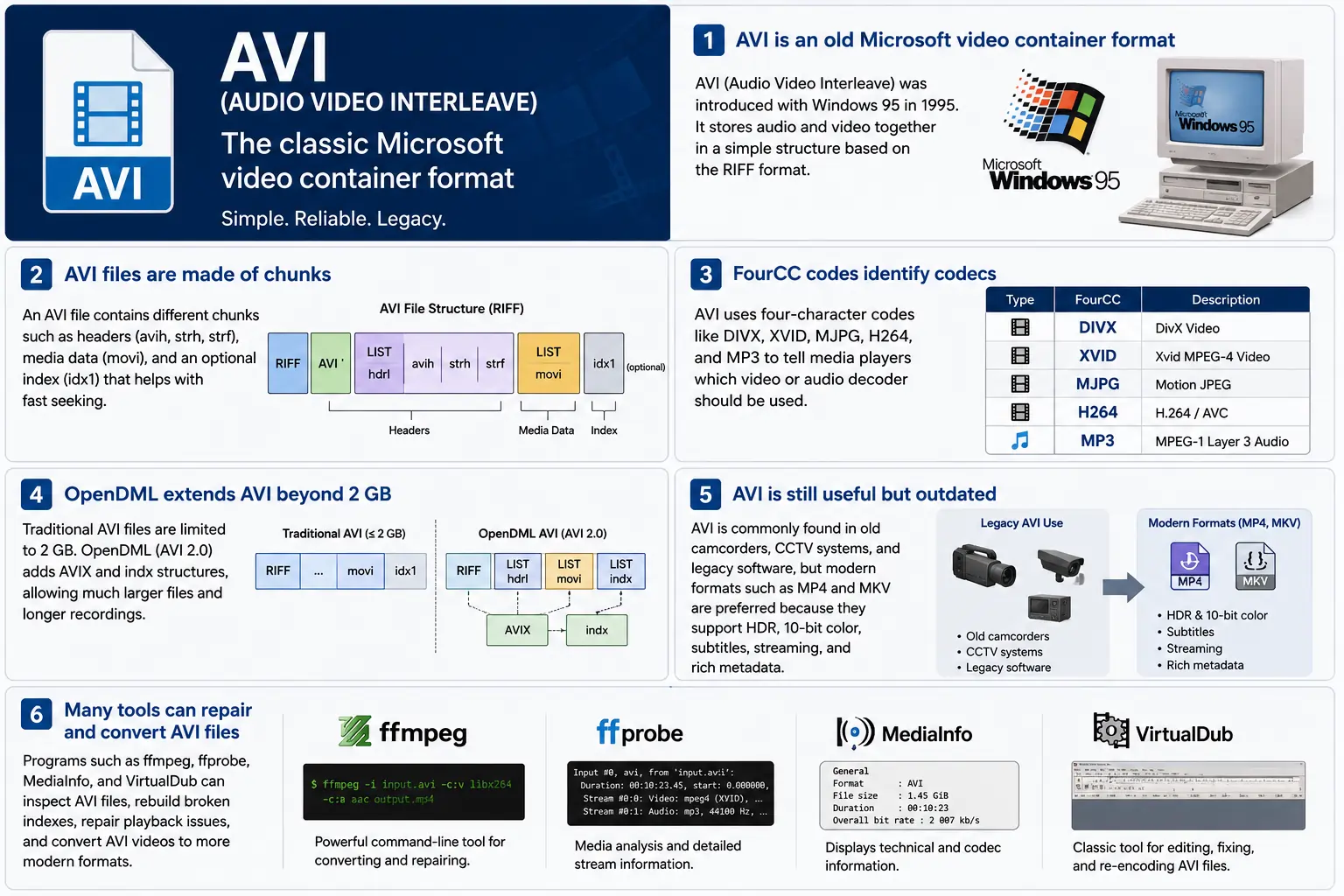
TL;DR – AVI (Audio Video Interleave) คือคอนเทนเนอร์ “วิดีโอดิจิทัล” แรกของ Microsoft ที่เกิดขึ้นพร้อม Windows 95. มันเป็นไฟล์แบบ RIFF‑based ที่สลับชั้นข้อมูลวิดีโอและออดิโอที่บีบอัดเพื่อให้ผู้เล่นอ่านได้พร้อมกัน. ฟอร์แมตนี้ยังคงรองรับโดย Windows Media Player และเครื่องมือโอเพ่นซอร์สหลายตัว, แต่ขาดคุณสมบัติสมัยใหม่เช่น HDR, สี 10‑bit, และเมตาดาต้าการสตรีมที่แข็งแรง. หากคุณต้องเจาะลึกฟุตเทจเก่า, ควรเข้าใจโครงสร้างชังค์, รหัส FourCC, และส่วนขยาย OpenDML ที่ยกขีดจำกัด 2 GB – นั่นคือสาระสำคัญของ AVI.
1. ไฟล์ AVI คืออะไรอย่างแท้จริง?
- ชื่อเต็ม: Audio Video Interleave
- การปรากฏครั้งแรก: Windows 95 (1995) – คำตอบของ Microsoft ต่อ “digital video” บนคอมพิวเตอร์ส่วนบุคคล.
- สเปค: สร้างบนสเปค RIFF (Resource Interchange File Format) ตั้งแต่ปี 1991. RIFF เป็นคอนเทนเนอร์ “chunk‑based” ทั่วไป; AVI เพียงกำหนดชุดของชังค์ที่เก็บข้อมูลออดิโอ, วิดีโอ, และข้อมูลดัชนี.
- ส่วนขยายไฟล์ / MIME:
.avi–video/x-msvideo. - เป้าหมายหลัก: ทำให้สตรีมเสียงและวิดีโอถูกจัดเรียงสลับกันอย่างแน่นหนาบนดิสก์ เพื่อให้ลูปการเล่นแบบง่ายสามารถอ่านเฟรมวิดีโอแล้วตามด้วยตัวอย่างเสียงที่ตรงกันโดยไม่ต้องค้นหาแบบใช้เวลามาก.
- สถานะเก่า: ยังคงเล่นได้ใน Windows Media Player, DirectShow, VLC, และผู้เล่นอื่น ๆ จำนวนมาก แต่ไม่ใช่คอนเทนเนอร์ “สมัยใหม่”. ไม่มีการสนับสนุน HDR แบบเนทีฟ, 10‑บิต, อัตราบิตเปลี่ยนแปลงได้, หรือเมตาดาต้าที่หลากหลาย.
2. ภายในกล่อง – วิธีการทำงานของ AVI
โครงกระดูกชังก์ RIFF
ไฟล์ AVI คือเพียงชุดของ chunks:
RIFF <size> "AVI "          ; file header
  LIST "hdrl"               ; header list
    avih ...                ; main AVI header (global info)
    LIST "strl"             ; stream list (one per stream)
      strh ...              ; stream header (type, codec, timing)
      strf ...              ; stream format (codec‑specific data)
  LIST "movi"               ; interleaved media data
    00dc <size> <video frame>
    01wb <size> <audio block>
    …
  idx1 ...                  ; optional index for fast seeking
- Chunk ID (4 bytes) – เช่น
avih,strh,movi. - Chunk size (4 bytes) – ความยาวของข้อมูลที่ตามมา (ไม่รวมฟิลด์ ID และขนาด).
- Data – เนื้อหาจริง (หัวไฟล์, เฟรมดิบ, ฯลฯ).
เนื่องจาก RIFF สามารถขยายได้ คุณสามารถเพิ่มประเภท chunk ใหม่โดยไม่ทำให้ตัวแยกวิเคราะห์เก่าเสีย – การออกแบบที่ทำให้ AVI มีชีวิตอยู่หลายทศวรรษ.
FourCC – ผู้กระซิบโค้ดแค็ต
รหัสสี่ตัวอักษร (FourCC) คือสิ่งที่เชื่อมโยงบอกให้ผู้เล่นทราบว่า ตัว decoder ที่จะโหลด. บางรหัสที่พบบ่อยที่คุณจะเห็นในไฟล์ AVI:
| FourCC | Codec (ffmpeg) | การใช้งานทั่วไป |
|---|---|---|
DIVX | mpeg4 (DivX) | MPEG‑4 Part 2 รุ่นแรก |
XVID | mpeg4 (Xvid) | MPEG‑4 แบบเปิดแหล่งที่มา |
MJPG | mjpeg | Motion‑JPEG (กล้องวิดีโอดิจิทัล) |
H264 | h264 | H.264/AVC (หายากแต่เป็นไปได้) |
MP3 | mp3 | สตรีมเสียง MP3 |
PCM | pcm_s16le | เสียง PCM ที่ไม่ได้บีบอัด |
FourCC อยู่ในชังค์ strh (ตัวระบุโค้ด) และบางครั้งในบล็อก strf (รูปแบบพิกเซล, รูปแบบตัวอย่างเสียง).
การจับเวลาและการซิงโครไนซ์
AVI ใช้ระบบ time‑base แบบง่าย:
- ส่วนหัวระดับโลก (
avih):dwRate/dwScale→ เฟรมต่อวินาที. - ส่วนหัวต่อสตรีม (
strh):dwRate/dwScaleของตนเองสำหรับสตรีมเสียงหรือวิดีโอรอง.
ผู้เล่นคูณหมายเลขเฟรมด้วย scale/rate เพื่อคำนวณ timestamp การนำเสนอ (PTS) หากสเกลไม่ตรงกัน คุณจะพบบั๊กคลาสสิก “เสียงหลุดออกจากการซิงค์” ที่ทำให้เครื่องมือเก่า ๆ ต้องเจอ.
movi ชันค์ – ที่สื่ออาศัยอยู่
เฟรมที่บีบอัดทั้งหมดอยู่ใน LIST movi ทุกเฟรมจะถูกนำหน้าด้วย chunk ID ที่บอกว่ามันเป็นวิดีโอ (00dc) หรือเสียง (01wb) ID นี้ยังเข้ารหัสหมายเลขสตรีมด้วย ดังนั้นไฟล์ที่มีแทร็กเสียงสองแทร็กจะมี 01wb และ 02wb.
เนื่องจากข้อมูลถูกแทรกสลับกันแล้ว ผู้เล่นจึงสามารถอ่านเฟรมวิดีโอแล้วตามด้วยบล็อกเสียงถัดไป และแสดงผลพร้อมกันโดยไม่ต้องค้นหาไปไกลล่วงหน้า รูปแบบการเขียนที่กำหนดได้นี้ทำให้ AVI เป็นที่นิยมสำหรับอุปกรณ์จับภาพช่วงแรกที่ต้องการการเขียนดิสก์ที่มีความหน่วงต่ำ.
การทำดัชนี (idx1) – ไปข้างหน้าเร็ว, ถอยหลังเร็ว
ชังค์ idx1 ทางเลือกเป็นตารางของออฟเซ็ตและขนาดสำหรับทุกเฟรมใน movi เมื่อมีอยู่ การค้นหาจะเป็นการค้นหาในตารางอย่างง่าย หากไม่มี ผู้เล่นต้องสแกนไฟล์แบบเรียลไทม์ – ซึ่งอาจทำให้เกิดการหยุด “บัฟเฟอร์” ที่สังเกตได้บนไฟล์ขนาดใหญ่.
OpenDML (AVI 2.0) – ทำลายข้อจำกัด 2 GB
สเปค RIFF ดั้งเดิมจำกัดฟิลด์ขนาดของชังค์ให้เป็นจำนวนเต็มบวก 32‑bit → 2 GB เป็นขนาดไฟล์สูงสุด. OpenDML (บางครั้งเรียกว่า AVI 2.0) ได้แนะนำ:
AVIXLISTs – ส่วน “extended” เพิ่มเติมของ RIFF ที่สามารถตามหลัง 2 GB แรกได้.indxchunk – ดัชนีที่รองรับ 64‑bit.- ฟิลด์หัวเรื่องเพิ่มเติมสำหรับระยะเวลาที่ยาวขึ้น.
เครื่องมือสมัยใหม่ส่วนใหญ่ (ffmpeg, VLC) จะสลับไปใช้ OpenDML อัตโนมัติเมื่อผลลัพธ์เกิน 2 GB, แต่ผู้เล่นเก่าหลายตัวยังคงทำงานไม่ถูกกับชังค์ AVIX, ดังนั้นคุณอาจเห็นวิธีแก้ไขความเข้ากันได้ที่แบ่งการบันทึกยาวออกเป็นไฟล์ AVI ขนาด 2 GB หลายไฟล์.
3. AVI อยู่ที่ไหนในปี 2024?
| แนวโน้ม | ความหมายต่อ AVI |
|---|---|
| เปลี่ยนไปใช้ MP4/MKV/ProRes | การผลิตใหม่มักเลือกคอนเทนเนอร์ที่รองรับ HDR, 10‑bit, VBR และเมตาดาต้าที่หลากหลายโดยเนทีฟ AVI ถูกเลือกใช้เป็นครั้งคราวสำหรับเนื้อหาใหม่ |
| ฮาร์ดแวร์เก่า | กล้อง CCTV รุ่นเก่า, กล้องวิดีโอช่วงต้น‑2000s, และบางเกมเอนจินยังคงสร้างไฟล์ AVI อยู่ คุณยังต้องนำไฟล์เหล่านั้นเข้าสู่กระบวนการทำงานสมัยใหม่ |
| การสนับสนุนโอเพ่นซอร์ส | ffmpeg, libav, VLC, HandBrake และ GStreamer ทำให้ตัวแยกวิเคราะห์ AVI ยังคงอยู่ แต่พวกเขามัก แปลงใหม่ เป็น MP4/MKV เพื่อการแจกจ่าย |
| การฟื้นคืน OpenDML | การบันทึกการเฝ้าระวัง 4K ที่ทำงานเป็นวัน ๆ จะเกิน 2 GB อย่างรวดเร็ว OpenDML (AVIX) ยังคงเป็นวิธีแก้ไขหลัก แม้ว่าหลายเครื่องมือจะจัดการไม่ถูกต้อง |
| การเสริมความปลอดภัย | ตัวแยกวิเคราะห์ AVI แบบเก่าเคยยอมรับขนาดชังก์ที่ผิดรูปแบบ ทำให้เกิด CVE (เช่น CVE‑2020‑13144) Windows ปัจจุบันนิยมใช้ Media Foundation ซึ่งปฏิเสธหลายข้อบกพร่องของรุ่นเก่า ส่งผลให้นักพัฒนาถูกกระตุ้นให้ใช้ pipeline ที่ปลอดภัยมากขึ้น |
| Pipeline ที่ไม่ขึ้นกับคอนเทนเนอร์ | เฟรมเวิร์กสื่อสมัยใหม่ถือว่า AVI เป็นเพียงองค์ประกอบแหล่งข้อมูลอีกหนึ่งตัว เมื่อข้อมูลถูกแยกสัญญาณ (demux) ไปเป็นบัฟเฟอร์ดิบแล้ว คอนเทนเนอร์จะไม่มีความสำคัญต่อการประมวลผลต่อไป |
สรุปแล้ว AVI ยังมีชีวิตแต่กำลังแก่ตัว – มันยังคงใช้งานได้ในกรณีที่ต้องการฮาร์ดแวร์เก่าหรือการจัดเก็บแบบแทรกสลับแบบง่าย แต่ไม่ใช่ตัวเลือกแรกสำหรับโครงการใหม่
4. ปฏิบัติจริง: ทำงานกับ AVI วันนี้
A. ดูส่วนหัวขั้นต่ำ (hex)
52 49 46 46  00 00 00 00  41 56 49 20   ; "RIFF" + size + "AVI "
4C 49 53 54  20 00 00 00  68 64 72 6C   ; LIST "hdrl"
...
ค่า RIFF มายาจิก (52 49 46 46) บอกตัวแยกวิเคราะห์ทุกตัวว่า “นี่คือไฟล์ RIFF” ไบต์สี่ตัวถัดไปคือขนาดไฟล์ทั้งหมด (ลบ 8) ตัวระบุ "AVI " ทำให้ไฟล์ถูกล็อกไว้ในตระกูล AVI
B. การแปลง MP4 สมัยใหม่ → AVI เก่า
ffmpeg -i input.mp4 \
       -c:v mpeg4 -q

```bash
ffmpeg -i input.mp4 \\ -c:v mpeg4 -qscale:v 5 \\   # MPEG‑4 Part 2 (เข้ากันได้กับ DivX/Xvid) -c:a mp3 -b:a 192k \\      # เสียง MP3 (เครื่องเล่น AVI ส่วนใหญ่เข้าใจรูปแบบนี้) -f avi output.avi
The command above forces MPEG‑4 Part 2 video (the codec most legacy AVI players recognize) and MP3 audio, then writes an AVI container. If you need OpenDML support for files larger than 2 GB, add the -movflags +faststart‑style flag that tells FFmpeg to use the extended AVIX chunks:
ffmpeg -i input.mp4 \\ -c:v mpeg4 -qscale:v 5 \\ -c:a mp3 -b:a 192k \\ -f avi -flags +global_header -movflags +faststart output.avi
Tip: Some older Windows Media Player versions still choke on the
AVIXextension. If you must stay under 2 GB, split the source into multiple AVIs using the-segment_timeand-f segmentmuxer.
5. Common Pitfalls & How to Fix Them
| Symptom | Likely Cause | Fix |
|---|---|---|
| Audio drifts out of sync after a few minutes | Mismatched dwRate/dwScale between avih and strh (or a VBR audio stream) | Re‑encode audio to a constant‑bitrate format (e.g., MP3 128 kbps) or use -vsync 2 in FFmpeg to force frame‑accurate timestamps. |
| “Cannot play this video” on Windows Media Player | Missing or corrupt idx1 index, or OpenDML (AVIX) chunks not recognized | Run ffmpeg -i broken.avi -c copy -map 0 -f avi repaired.avi to rebuild the index; or use aviindex (part of mplayer) to generate a fresh idx1. |
| File size capped at 2 GB despite long footage | Encoder used classic AVI (no OpenDML) | Add -use\_open\_dml 1 (FFmpeg) or -format avi2 (VirtualDub) to enable OpenDML extensions. |
| Green or corrupted frames | Incompatible FourCC (e.g., H.264 in an AVI without proper headers) | Stick to codecs known to work in AVI (mpeg4, msmpeg4v2, MJPG, XVID). If you must store H.264, use the h264 FourCC and ensure the strf chunk contains the SPS/PPS extradata. |
| Playback stalls on network streams | AVI’s lack of robust streaming metadata (no moov atom) | Wrap the AVI in a streaming protocol (e.g., RTSP) that handles byte‑range requests, or convert to MP4/MKV for smoother streaming. |
6. Debugging Tools You Should Keep Handy
| Tool | Platform | What It Does |
|---|---|---|
| ffprobe / ffmpeg | Cross‑platform | Dumps every chunk, FourCC, timestamps, and can rebuild indexes (-c copy). |
| MediaInfo | Windows/macOS/Linux | Human‑readable summary of streams, codecs, and container flags. |
| VirtualDub | Windows | Classic AVI editor; can rebuild headers, add OpenDML, and preview frame‑by‑frame. |
| GSpot (legacy) | Windows | Identifies obscure FourCCs and suggests appropriate codecs. |
| aviindex (part of MPlayer) | Linux/macOS | Generates a fresh idx1 chunk for broken files. |
| Hex editors (HxD, Bless) | Any | Directly inspect RIFF headers when you suspect malformed chunk sizes. |
A typical workflow when an AVI refuses to play:
- Inspect with
ffprobe -show_format -show_streams file.avi. - Check the index:
ffmpeg -i file.avi -c copy -f avi -y temp.avi(FFmpeg will rebuild it automatically). - Validate FourCCs:
mediainfo file.avi. If you see an unknown codec, consider re‑encoding that stream. - Repair with VirtualDub → “File → Re‑open as AVI (OpenDML)”. Save a fresh copy.
7. When (and When Not) to Use AVI
Good Use‑Cases
| Scenario | Why AVI Works |
|---|---|
| Legacy camcorder ingest | The device outputs native AVI; transcoding adds unnecessary quality loss. |
| Simple interleaved capture | Low‑latency write to disk without needing complex container features. |
| Compatibility with old Windows‑only software | Some industrial automation tools only understand AVI. |
| Archiving raw, uncompressed video | AVI can hold PCM audio and uncompressed RGB24 video without extra overhead. |
Bad Use‑Cases
| Scenario | Why AVI Fails |
|---|---|
| HDR or 10‑bit color | No standard way to store those pixel formats; you’d need a custom FourCC that most players ignore. |
| Variable‑bit‑rate streaming | Lack of a proper moov‑like atom makes adaptive bitrate impossible. |
| Rich metadata (chapters, subtitles, tags) | AVI’s chunk model doesn’t define standard containers for subtitles or extensive tags. |
| Cross‑platform mobile distribution | Modern mobile players expect MP4/MKV; AVI may not be hardware‑accelerated. |
If you’re starting a new project, treat AVI as a fallback for legacy pipelines, not a primary delivery format.
8. Future Outlook – Will AVI Ever Make a Comeback?
The short answer: unlikely. The industry has coalesced around ISO‑BMFF‑based containers (MP4, MOV, HEVC‑MP4, etc.) because they support:
- Extensible metadata (ISO‑UserData, UUID boxes).
- Fragmented streaming (moof/mdat) for adaptive bitrate.
- Native HDR/10‑bit/12‑bit video definitions.
AVI’s design, while elegant for its time, is fundamentally limited by its 32‑bit size fields and its reliance on external FourCC‑driven codecs. Even though OpenDML extended the size limit, it never gained widespread adoption beyond niche surveillance and archival tools.
That said, software preservation will keep AVI parsers alive for decades. Projects like FFmpeg, GStreamer, and VLC will continue to support the format, ensuring that the massive archive of 1990s‑2000s footage remains accessible. In a world where “digital archaeology” is becoming a real discipline, knowing how to read and repair AVI files is still a valuable skill.
9. Quick Reference Cheat‑Sheet
| Item | Command / Setting | Explanation |
|---|---|---|
| Create classic AVI | ffmpeg -i src -c:v mpeg4 -qscale:v 5 -c:a mp3 -b:a 192k -f avi out.avi | Simple, widely compatible. |
| Enable OpenDML | ffmpeg -i src -c:v mpeg4 -qscale:v 5 -c:a mp3 -b:a 192k -f avi -use_open_dml 1 out.avi | Allows >2 GB files. |
| Re‑index broken AVI | ffmpeg -i broken.avi -c copy -f avi repaired.avi | Rewrites idx1. |
| Split >2 GB into chunks | ffmpeg -i long.avi -c copy -map 0 -segment_time 1800 -f segment part_%03d.avi | 30‑minute segments stay under the limit. |
| Inspect header | ffprobe -show_format -show_streams file.avi | Dumps all RIFF chunks and stream info. |
| Add a subtitle track (non‑standard) | ffmpeg -i video.avi -i subs.srt -c copy -metadata:s:s:0 language=eng out.avi | Works only with players that read the txt stream; not universally supported. |
Keep this table bookmarked; it covers 80 % of everyday AVI tasks.
10. Best Practices for Archiving AVI Files
Even though AVI is a legacy container, many institutions still have petabytes of it sitting on tape or in cold‑storage. Treating those assets with a disciplined workflow will save you headaches down the line.
| Practice | Why It Matters | How to Implement |
|---|---|---|
| Validate on ingest | Corrupt headers or missing indexes can go unnoticed until playback. | Run ffprobe -v error -show_format -show_streams file.avi immediately after copying. Log any non‑zero exit codes. |
| Generate a checksum | Guarantees bit‑exact preservation across media migrations. | Use SHA‑256 (sha256sum file.avi > file.avi.sha256). Store the checksum alongside the file in your catalog. |
| Create a modern proxy | Most downstream workflows (editing, streaming) expect MP4/MKV. | Encode a low‑bitrate MP4 proxy (ffmpeg -i file.avi -c:v libx264 -crf 23 -c:a aac -b:a 128k proxy.mp4). Keep the proxy in the same directory with a clear naming convention (*_proxy.mp4). |
| Document FourCCs and codec versions | Some FourCCs map to multiple codec implementations (e.g., DIVX could be DivX 5, 6, or 7). | Extract the codec private data (ffprobe -show_private_data) and store it in a side‑car JSON file (file.avi.codec.json). |
| Migrate to OpenDML for large files | Files >2 GB will become unreadable on older players. | When transcoding, always pass -use_open_dml 1. If you’re only copying, use aviindex to rebuild an OpenDML‑compatible index. |
| Store metadata in a side‑car | AVI has no standard for extensive tags (e.g., creator, location). | Use XMP side‑car files (file.avi.xmp) or embed a small INFO LIST chunk manually if you need minimal in‑container metadata. |
| Regularly test playback | Bit‑rot can affect codecs as well as containers. | Schedule a quarterly job that runs a headless player (e.g., ffplay -autoexit -frames 10 file.avi) and reports any failures. |
By applying these steps at the moment of acquisition, you avoid costly “repair‑the‑archive” projects later.
11. Frequently Asked Questions (FAQ)
Q1: Can I store H.265/HEVC video inside an AVI file?
Short answer: Technically yes, if you supply the correct FourCC (HEVC or HVC1) and include the SPS/PPS NAL units in the strf chunk. In practice, very few players support it, and many will treat the stream as unknown. For reliable playback, stick to MPEG‑4 Part 2 or Motion‑JPEG.
Q2: Why does Windows Media Player sometimes show a black screen but still plays audio?
Explanation: The player has successfully opened the audio stream but failed to locate a usable video decoder for the FourCC. This can happen when the FourCC is custom or when the required codec isn’t installed. Installing a codec pack (e.g., K-Lite) or re‑encoding the video to a known FourCC resolves the issue.
Q3: Is there any way to embed subtitles directly into an AVI file?
Answer: AVI does not define a standard subtitle stream. Some tools cheat by adding a “txt” stream (FourCC txt ) that contains plain‑text subtitles, but only a handful of players (e.g., VirtualDub with a plugin) will render them. The recommended approach is to keep subtitles in a separate .srt or .ass file, or to re‑mux into a container that officially supports subtitles (MP4, MKV).
Q4: My video shows a “frame rate mismatch” warning in MediaInfo. What should I do?
Solution: Verify that the dwRate/dwScale values in both the global avih and per‑stream strh headers are consistent. If they differ, re‑mux with FFmpeg using -video_track_timescale to force a uniform time base:
ffmpeg -i broken.avi -c copy -video_track_timescale 1000 fixed.avi
Q5: Does AVI support multiple audio languages?
Yes, but with caveats. You can add several audio streams, each with its own strh/strf pair and a distinct stream number (01wb, 02wb, …). However, there is no standardized way to label the language; you must rely on external metadata (e.g., an accompanying .xml file) or embed a custom INFO chunk.
Q6: How can I extract raw frames from an AVI without re‑encoding?
Command:
ffmpeg -i source.avi -c:v copy -f image2 frame_%05d.bmp
Replace bmp with png or tiff if you prefer lossless image formats. The -c:v copy flag tells FFmpeg to dump the compressed frames as‑is; if the codec is MJPEG, the output will already be JPEG images.
Q7: Are there any security concerns when opening AVI files from untrusted sources?
Yes. Malformed chunk sizes can trigger buffer overflows in legacy parsers (e.g., older DirectShow filters). Always open unknown AVIs in a sandboxed environment or use a modern library like FFmpeg that performs strict bounds checking. Updating Windows Media Foundation and disabling legacy DirectShow filters further mitigates risk.
12. TL;DR สรุป (สำหรับผู้ที่เร่งรีบ)
- AVI = RIFF‑based, interleaved container introduced with Windows 95.
- FourCC tells the player which codec to use; common ones are
DIVX,XVID,MJPG,H264,MP3. - Timing is driven by
dwRate/dwScalein the global and stream headers. moviholds the actual media;idx1(optional) speeds up seeking.- OpenDML (
AVIX) lifts the 2 GB limit but isn’t universally supported. - Use cases today: legacy camcorder ingest, simple interleaved capture, archival of raw PCM video.
- Avoid for new projects: no HDR, 10‑bit, VBR, subtitles, or rich metadata.
- Toolbox:
ffprobe,ffmpeg, MediaInfo, VirtualDub, aviindex, hex editors. - Best practice: validate, checksum, generate modern proxies, and migrate large files to OpenDML.
13. ความคิดปิดท้าย
AVI’s simplicity is both its strength and its Achilles’ heel. It gave early PC users a straightforward way to store synchronized audio‑video pairs, and that design philosophy—interleaved chunks, a clear header layout, and extensible FourCC identifiers—still influences modern containers. While the industry has moved on to more feature‑rich formats, the sheer volume of legacy footage means AVI will remain a “must‑know” for anyone working in video preservation, forensic analysis, or any field that must bridge the past with today’s workflows.
If you ever find yourself staring at a dusty .avi on a hard drive from the late‑90s, you now have the conceptual map, the command‑line recipes, and the troubleshooting checklist to bring that footage back to life—whether you choose to keep it in its original container or transcode it into a modern, HDR‑ready format.
Happy demuxing!