Last Updated: 27 July, 2026
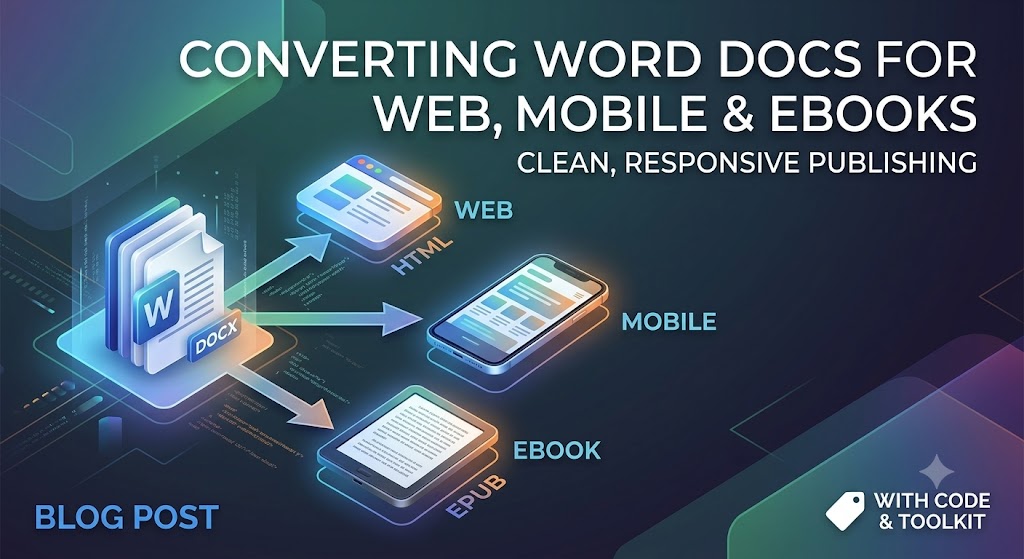
From Word Doc to Every Screen: Converting Files for Web, Mobile & e-Readers
Microsoft Word is the undisputed king of draft creation. Writers, teams, and business owners use it every day to draft everything from long-form blog posts and training manuals to full-length manuscripts.
However, Word files (.docx) are designed primarily for fixed-size print pages (like Letter or A4). The modern digital landscape operates on fluid screens—whether that is a 6-inch smartphone display, a Kindle e-reader, or a responsive web page.
Simply copying and pasting text straight out of Word into a web page or digital publishing tool often creates mess—unwanted inline styling, broken layouts, giant image files, and bloated code. This guide provides the tools and techniques you need to convert .docx efficiently and cleanly.
1. Preparing Your Word Document Before Conversion
The biggest mistake people make happens before they click convert. If your Word document relies on manual spacing, hard tabs, or floating graphics, the converted output will almost certainly break.
Clean Up the Source Document
- Use Structural Heading Styles: Do not just bold text and increase font size to create titles. Use Word’s built-in heading tools (
Heading 1,Heading 2,Heading 3). Standard conversion engines translate these directly into Semantic HTML tags (<h1>,<h2>,<h3>), which are critical for SEO and e-reader accessibility. - Avoid Hard Returns and Manual Tabs: Do not press
Entermultiple times to push content to the next page. Use explicit section or page breaks if necessary, though fluid web pages usually prefer continuous flow. - Set Image Alignment to “In Line with Text”: Floating images with wrapped text cause major overlapping errors when reflowing content on small mobile screens.
- Remove Custom Font Locks: Stick to standard fonts during drafting. When exported, font styles should be controlled by web CSS or the e-reader’s global settings, not hardcoded into the text.
2. Converting Word Documents for the Web (HTML/CSS)
When converting Word content into web articles or landing pages, your primary goal is generating clean, lean HTML.
The Problem with Direct Paste
Directly pasting a Word document into WYSIWYG editors (like WordPress or Webflow) often injects thousands of lines of hidden Microsoft XML code. This bloats your page weight, slows down page speed, and negatively impacts your technical SEO rankings.
Solution: Command Line Conversion (Pandoc)
Pandoc is the Swiss-army knife of document conversion. It is a command-line tool that can convert virtually any file format into another, including .docx to extremely clean HTML or Markdown.
# Example command using Pandoc to convert DOCX directly to clean Markdown/HTML
# The --extract-media option saves embedded images into a separate folder.
pandoc -f docx -t html input.docx -o output.html --extract-media=./images
Solution: JavaScript Library (Mammoth.js)
If you need a programmatic conversion—for instance, to integrate conversion directly into your own web application—Mammoth.js is an excellent browser and Node.js library. It focuses only on converting semantic elements (paragraphs, headings, lists) and intentionally ignores advanced formatting that ruins web layouts.
// Example using Mammoth.js to convert a local docx file
const mammoth = require("mammoth");
const fs = require("fs");

mammoth.convertToHtml({path: "input.docx"})
    .then(function(result){
        const html = result.value; // The generated clean HTML
        const messages = result.messages; // Any warnings or errors during conversion
        fs.writeFileSync("output.html", html);
        console.log("Conversion successful! Messages:", messages);
    })
    .catch(function(error) {
        console.error(error);
    });
3. Optimizing Word Documents for Mobile Views
Mobile readability demands adaptability. Unlike desktop monitors, mobile screens require vertical scrolling, dynamic text sizing, and minimal horizontal friction.
Key Rules for Mobile Optimization
- Break Up Text Blocks: Paragraphs longer than 4 lines on Word look like dense walls of text on a phone screen. Aim for short, 2–3 sentence paragraphs.
- Convert Large Tables into Responsive Lists: Tables designed for an 8.5x11 inch page will break horizontal scrolling on mobile. Unless data strictly requires grid representation, consider converting tables into bulleted lists or collapsible accordions.
- Compress and Scale Media: Images saved inside Word documents are often raw high-res files. Extract images (as shown in the Pandoc example), compress them into modern web formats like
.webp, and use relative width styling (max-width: 100%) so they auto-scale to any viewport.
4. Converting Word Documents into eBooks (EPUB & Kindle)
eBook platforms like Amazon Kindle (KDP), Apple Books, and Kobo rely on reflowable file formats—primarily EPUB and KPF (Kindle Package Format).
Step-by-Step Conversion Workflow
- Build a Dynamic Table of Contents (TOC): Ensure all chapter titles use Word’s built-in
Heading 1style. Automated eBook converters use these heading tags to construct the interactive navigation sidebar required by e-readers. - Convert to EPUB Format:
- Pandoc can handle this via the command line.
- Calibre (free, open-source software) or Sigil provide a GUI for converting
.docxdirectly into.epub.
- Inspect the Output: Open your generated EPUB file in a viewer to check image scaling, line breaks, and front-matter formatting (copyright pages, dedication, chapter starts).
# Convert DOCX directly to EPUB using Pandoc
# You must use structural headings in your Word doc for an automated TOC.
pandoc input.docx -o output.epub
Scripted eBook Conversion (Python)
If you need automated eBook generation, combining Python libraries like pypandoc (a wrapper for Pandoc) is a great solution.
# A simple script using pypandoc to generate an EPUB
import pypandoc

# Define input file and output format
input_file = 'input.docx'
output_file = 'output.epub'
output_format = 'epub'

# Convert the file
# Note: Pandoc must be installed on the system.
try:
    pypandoc.convert_file(input_file, output_format, outputfile=output_file)
    print(f"Successfully converted {input_file} to {output_file}")
except RuntimeError as e:
    print(f"Error during conversion: {e}")
Pro Tip: Never use manual page numbers in an eBook document. Because readers can adjust font size and line spacing on their devices, page numbers change constantly. Stick strictly to internal hyperlinked navigation.
Summary Checklist
- Applied semantic
Heading 1,Heading 2styles throughout. - Removed double-spaced
Enterkeys and manual tab stops. - Set all embedded graphics to In Line with Text.
- Stripped out unnecessary inline Microsoft formatting prior to web publishing using tools like Pandoc or Mammoth.
- Extracted and compressed image assets to modern web formats (
.webpor optimized.jpg). - Verified responsive layout rendering across mobile screen viewports.
Free APIs for Working with Word Processing Files
Conclusion: Streamlining Your Cross-Platform Document Workflow
Converting Microsoft Word documents for web, mobile, and eBook platforms doesn’t have to be a headache of broken formatting and bloated code. By treating Word strictly as a content creation engine rather than a layout tool, you set the foundation for seamless, cross-platform digital publishing.
Remember the golden rule: Focus on semantic structure over superficial styling. Using proper heading tags, avoiding manual formatting hacks, and leveraging developer tools like Pandoc or Mammoth.js ensures your content renders quickly, maintains crisp visual aesthetics on mobile devices, and ranks higher on search engines thanks to clean, lightweight HTML.
Whether you are publishing blog articles, building documentation, or formatting a manuscript for Amazon Kindle, following these best practices guarantees your text looks polished on every screen size.
Frequently Asked Questions (FAQ)
Q1: Why does copying and pasting directly from Word ruin my website’s formatting?
A1: Word includes hidden, proprietary XML formatting code during copy operations that overrides your website’s CSS styles and adds unneeded page weight.
Q2: Can I upload a Microsoft Word document directly to Amazon Kindle?
A2: Yes, Amazon Direct Publishing (KDP) accepts .docx files, but running them through Kindle Create, Pandoc, or converting to clean EPUB first prevents unexpected layout errors.
Q3: What is the best free tool to convert Word files into clean HTML?
A3: Tools like Mammoth.js (library), Pandoc (CLI), and specialized web-based HTML cleaners are the best options for stripping out Word bloat.
Q4: How do I make sure images from my Word doc look good on mobile devices?
A4: Ensure images are placed “In Line with Text” in Word, then export (using Pandoc), compress them, and use fluid CSS properties like max-width: 100% on your site.
Q5: What happens to Word fonts when converting to eBook formats like EPUB?
A5: Most e-readers automatically override custom document fonts with the user’s preferred device font, so it is best to rely on standard typography during conversion and focus on structure.
See also
- How to Create a Word Document in C# using FileFormat.Words
- How to Edit a Word Document in C# using FileFormat.Words
- How to Make a Table in Word Files using FileFormat.Words
- How to Perform Find and Replace in MS Word Tables using C#
- How Do I Open a Docx File in C# using FileFormat.Words?
- DOC vs DOCX vs ODT A Technical and Practical Comparison in 2026